RuEn Layout for Wireless Keyboards
If you’ve ever wondered why common symbols like periods and commas are located on different keys in Russian and English, or why you can’t type a curly brace in Russian, the RuEn approach solves this misunderstanding by unifying the position of symbols in the Russian and English layouts.
You can arrange symbols the same way in any other language as well; the approach is not limited to Russian and English.
Main Idea
In general, printing a symbol works like this: the keyboard sends information that a key in a specific position has been pressed, and the OS receives this press and prints the necessary symbol depending on the current layout in the OS. Let’s consider some examples. The “KC_Q” key is pressed on the keyboard
- if the standard English layout is selected in the OS, the letter “Q” will be printed;
- if the standard Russian layout is selected in the OS, the letter “Й” will be printed.
The presence of different letters in different layouts is mostly a familiar thing, although there are also phonetic layouts in which, for example, the letter “О” is placed in the same place in Russian and English, this reduces the cognitive load of memorizing different layouts, but words in Russian and English are constructed differently, and a phonetic layout will be less convenient for typing.
The “SLASH” key is pressed on the keyboard
- if the standard English layout is selected in the OS, a slash “/” will be printed;
- if the standard Russian layout is selected in the OS, a period “.” will be printed.
The “DOT” key is pressed on the keyboard
- if the standard English layout is selected in the OS, a period “.” will be printed;
- if the standard Russian layout is selected in the OS, the letter “Ю” will be printed.
The “LEFT_BRACE” key is pressed on the keyboard
- if the standard English layout is selected in the OS, the symbol “{” will be printed;
- if the standard Russian layout is selected in the OS, the letter “Х” will be printed.
The problem is identified - in the standard OS layouts, the period, and many other symbols, are printed by completely different keys, and some symbols, such as “{” do not exist in the Russian layout at all. Let’s consider possible solutions to the problem of unifying the location of symbols. There are two ways to solve this:
- on the OS side, by installing a layout on the computer in which the symbols are on the same key, for example https://github.com/braindefender/universal-layout, but here it is worth considering that the layout must be installed on each computer, as well as on remote desktops to which you connect;
- on the keyboard side, by configuring the layout using the RuEn approach, there is also a disadvantage here in that these settings are located specifically in the keyboard and on the built-in keyboard of the laptop, the symbols in different languages will be located on different keys.
The article below describes how to solve the problem on the keyboard side using the RuEn approach.
Getting Started
For Ergohaven keyboards, layouts have been prepared that contain the macros necessary for configuration; these layouts have the _ruen postfix in their name.
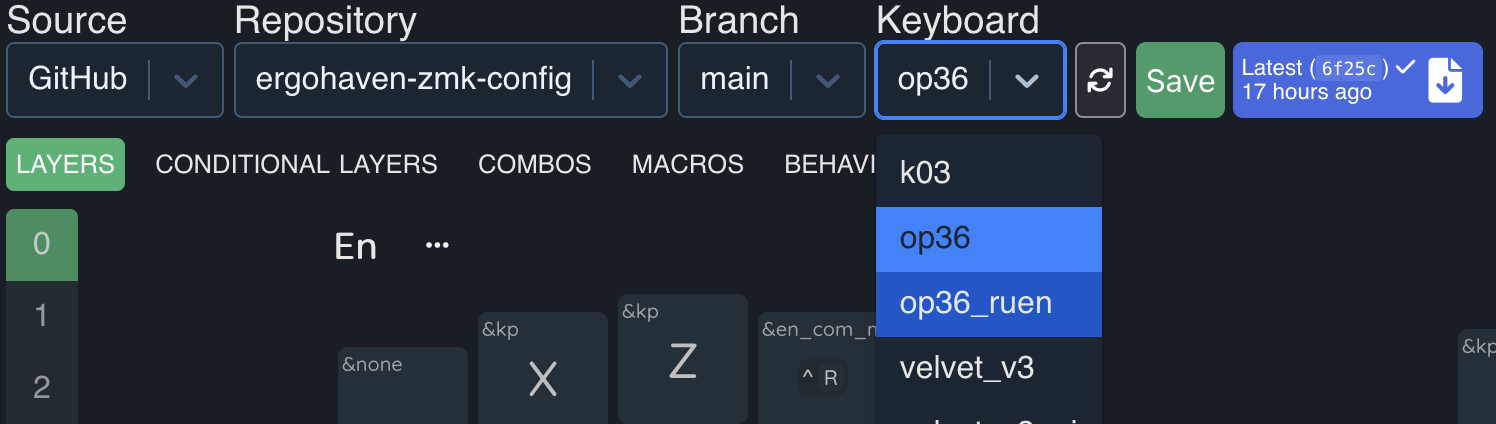
You can take the ruen layout as a basis, or if you already have a lot of developments in your layout, just create the same macros in it and create separate layers for each language.
When transferring macros to your layout, also pay attention to the parameters of the macros displayed when you click on the button with the wrench icon, it is important not to forget to transfer the
Wait (ms)andTap (ms)settings.
Macros in the ruen layout are oriented towards using combinations for unconditional language switching, Ctrl + Shift + 1 to enable English, and Ctrl + Shift + 2 to enable Russian (similar to RuEn M1M2 mode from Vial). This approach requires additional configuration on the OS side, but it greatly simplifies the synchronization of the language in the keyboard with the language in the OS. If this language switching approach does not suit you for some reason, the ruen approach gets along well with the standard key combination GUI + Space, described in more detail in the Toggle Language Switching section (similar to RuEn M0 and RuEn Default modes from Vial).
How RuEn Works
Let’s divide the symbols into 2 groups and analyze each one separately.
Symbols that appear in both languages
The first group is symbols that appear in both languages, but are located on different keys, such as a period or a question mark.
To combine the location of such symbols, we need to somehow let the keyboard know what language is currently in the OS, so that the keyboard presses the key corresponding to the language. For example, if we want to unify the position of the period, then in Russian the keyboard needs to send the SLASH key press to the OS, and in English DOT.
The layer functionality is perfect for solving this problem, we can configure it so that the layer in the keyboard switches at the same time as the language in the OS, and then it will perform the function of a variable, depending on this variable, the code of the desired key will be sent.
As the variable described earlier, the ruen layout has 2 separate layers en and ru. To place the period on the same key, we do the following:
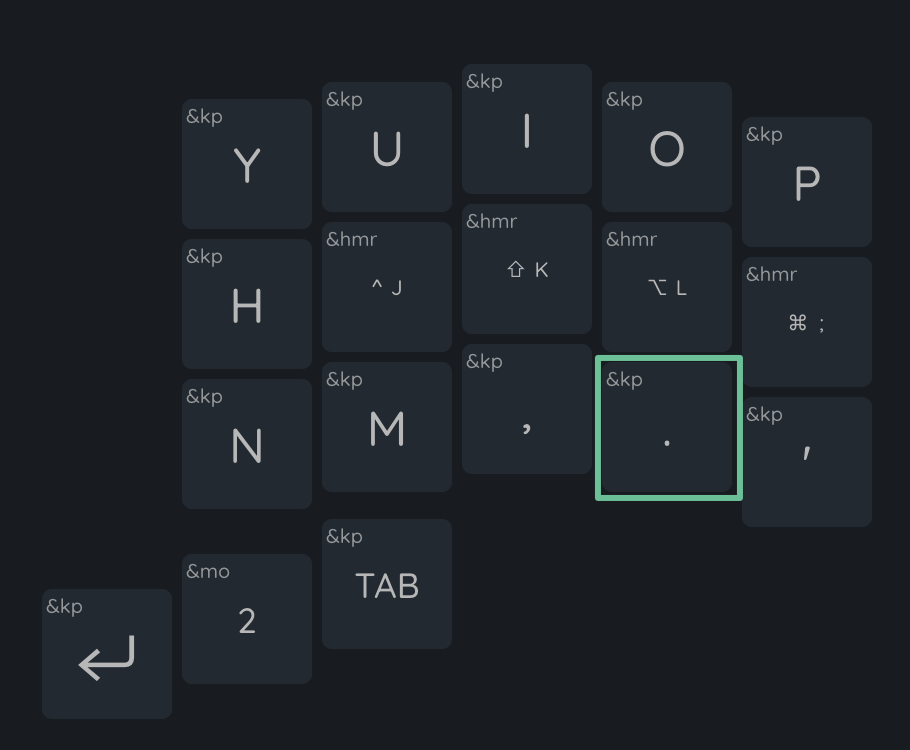
- On the en layer, assign the
&kp DOTbehavior to the desired key
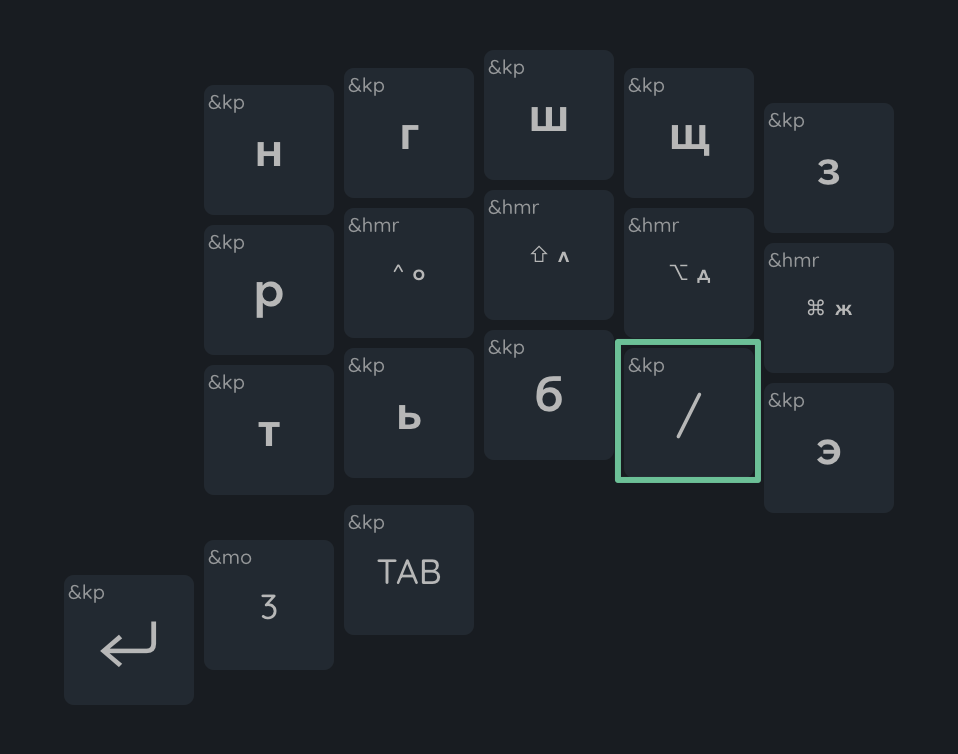
- On the ru layer, assign the
&kp SLASHbehavior to the same position
- To switch the language, you only need to use the
&layer_enand&layer_rumacros. The&layer_rumacro will send the key combinationCtrl + Shift + 2to the OS, thus the OS will switch to the Russian language and at the same time the keyboard will switch to the ru layer, thus the OS and the keyboard will be synchronously in the Russian layout, similarly the&layer_enmacro will send the combinationCtrl + Shift + 1to the OS to enable the English layout, and switch the keyboard to the en layer.
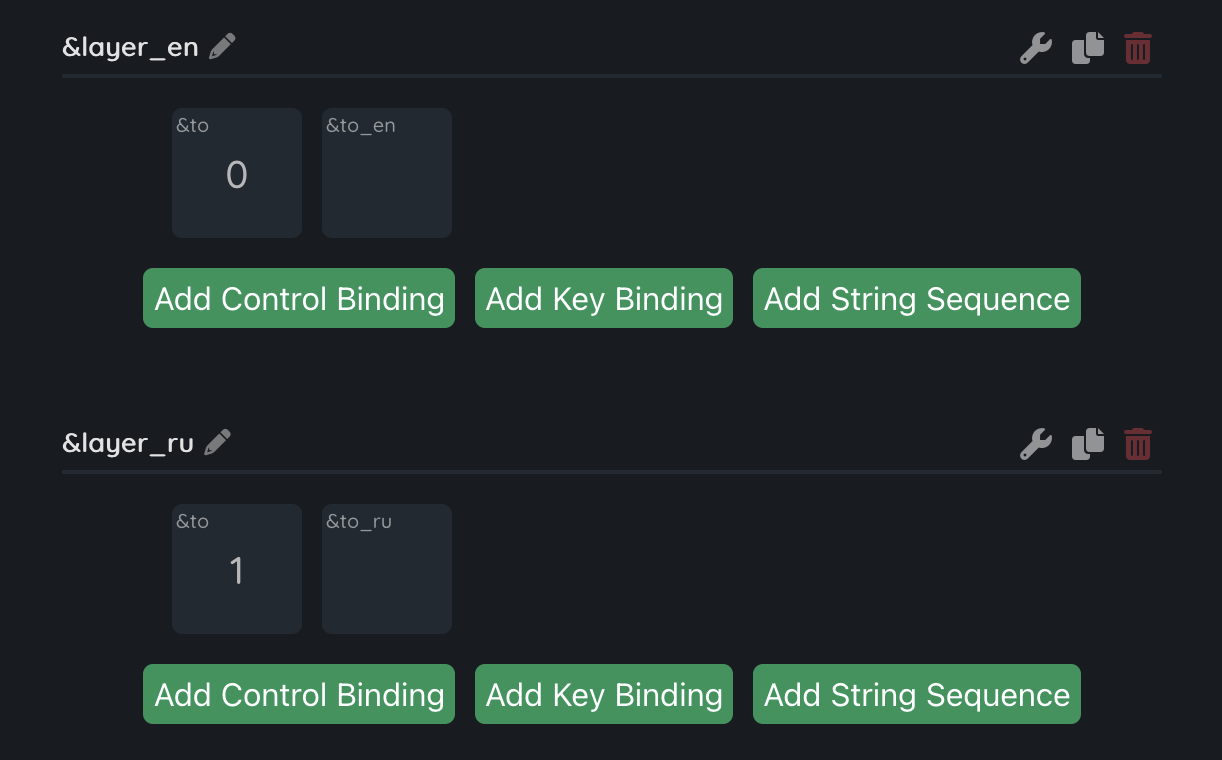
In the ruen layout, these macros are assigned to the “E” + “R” key combo by default. Being on the ru layer, pressing the “E” + “R” combo will switch the language in the OS to English and change the layer to en, and being on the en layer, pressing the combo will do the opposite, the language in the OS will switch to Russian, the layer will change to ru.
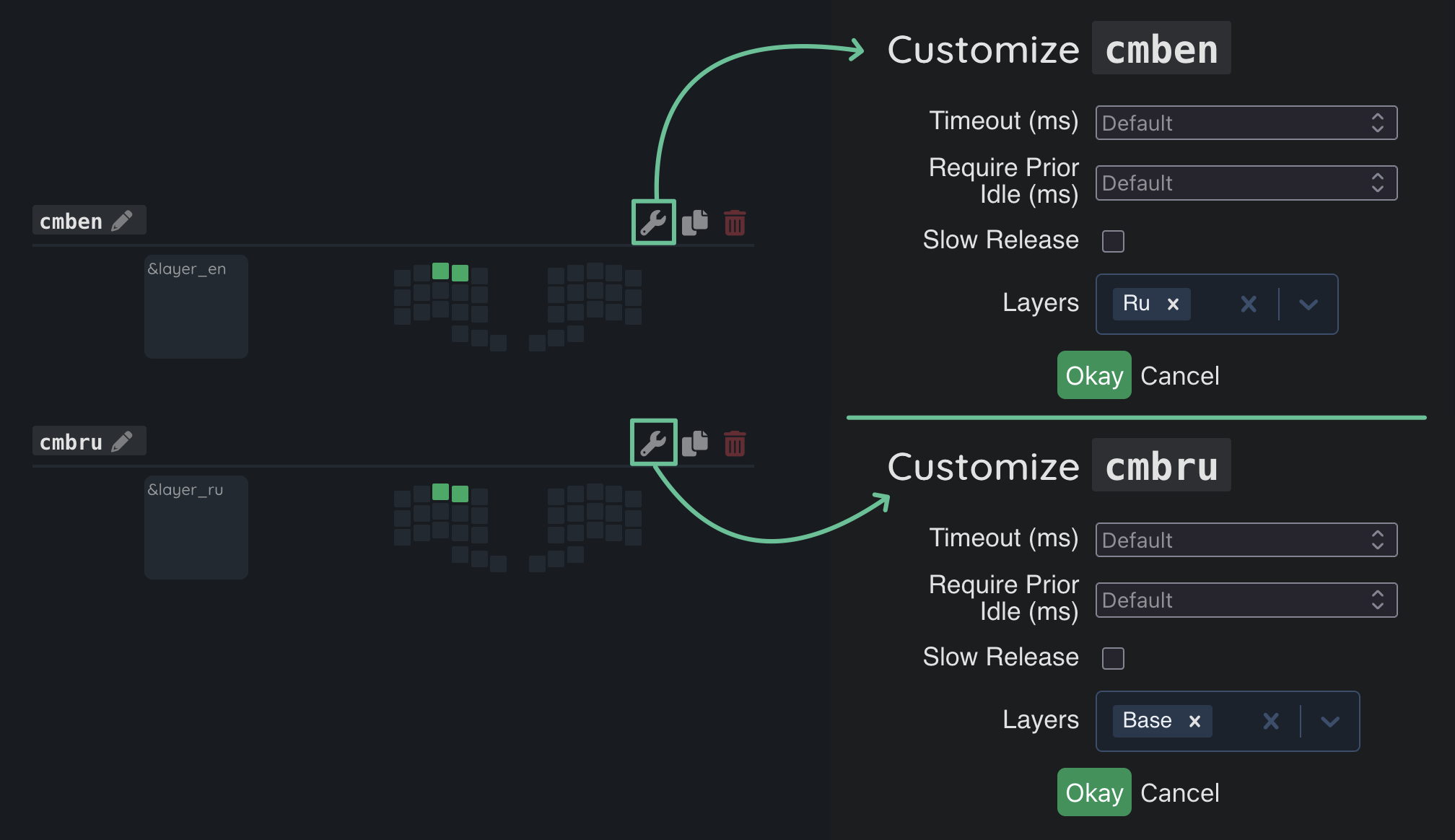
The
&layer_enand&layer_rumacros can be assigned to any place in the layout, for example to two different keys or two different combos “E” + “R” and “U” + “I”.
The goal has been achieved, now the period is printed in both languages by pressing the same key.
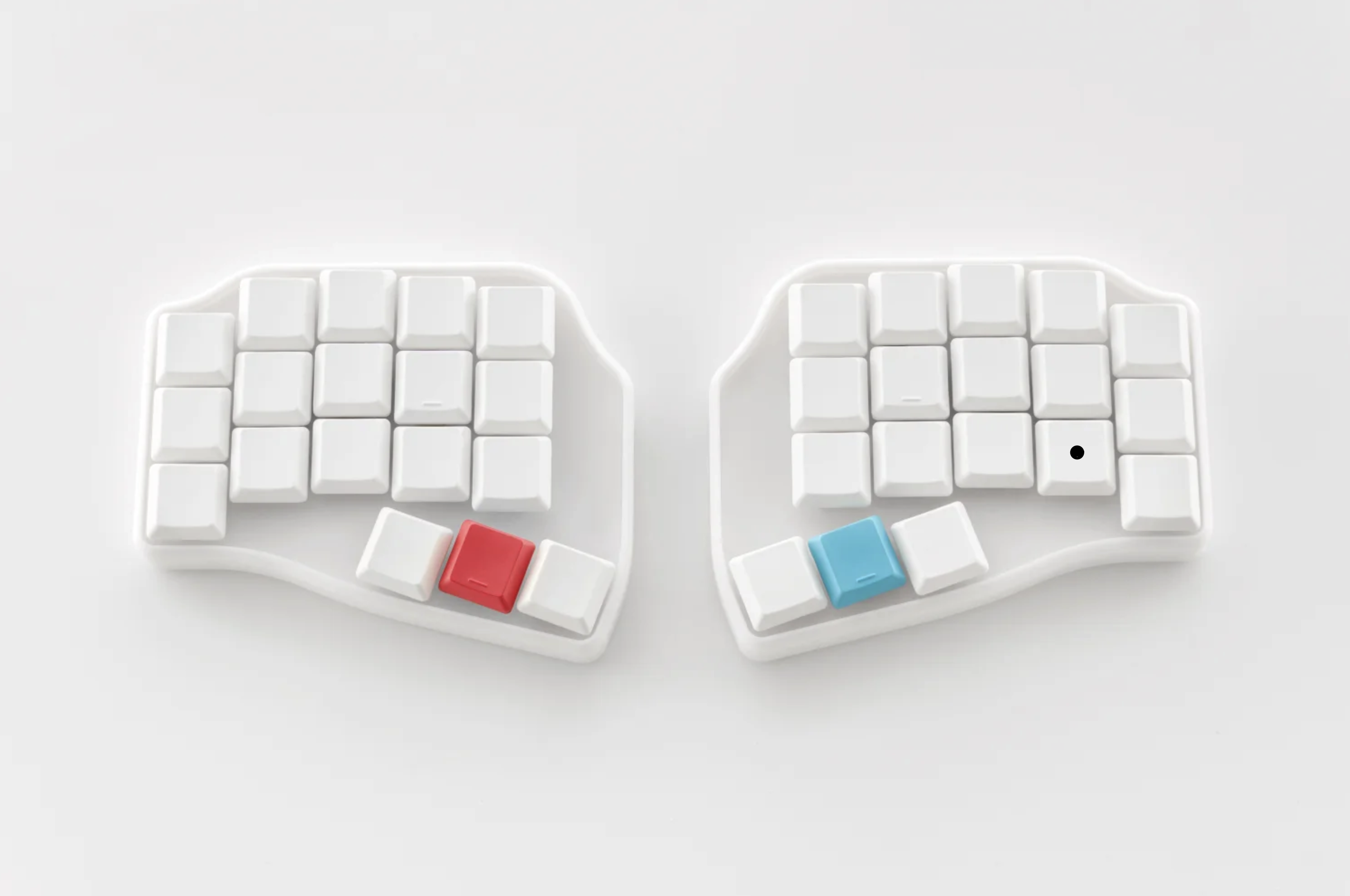
Symbols that appear in only one of the languages
The second group is symbols that are only in the layout of one of the languages, for example the symbol “&” is only in the English layout. To print a symbol from this group while in the Russian layout, you need to do the following:
Switch the language in the OS to English by pressing
Ctrl + Shift + 1;Press the key combination to print the symbol, in the case of the symbol
&, this key combination isShift + 7;Switch the language in the OS back to Russian by pressing
Ctrl + Shift + 2.
All these actions are contained in the parameterized macro &en from the ruen layout. We simply assign the macro to a key on the ru layer, and specify the keycode AMPS, or the key combination Shift + 7 as a parameter.
In some situations, it may be useful to hold down the key with the symbol, and the
&enmacro from theruenlayout will correctly handle this press, holding the symbol in the English layout.
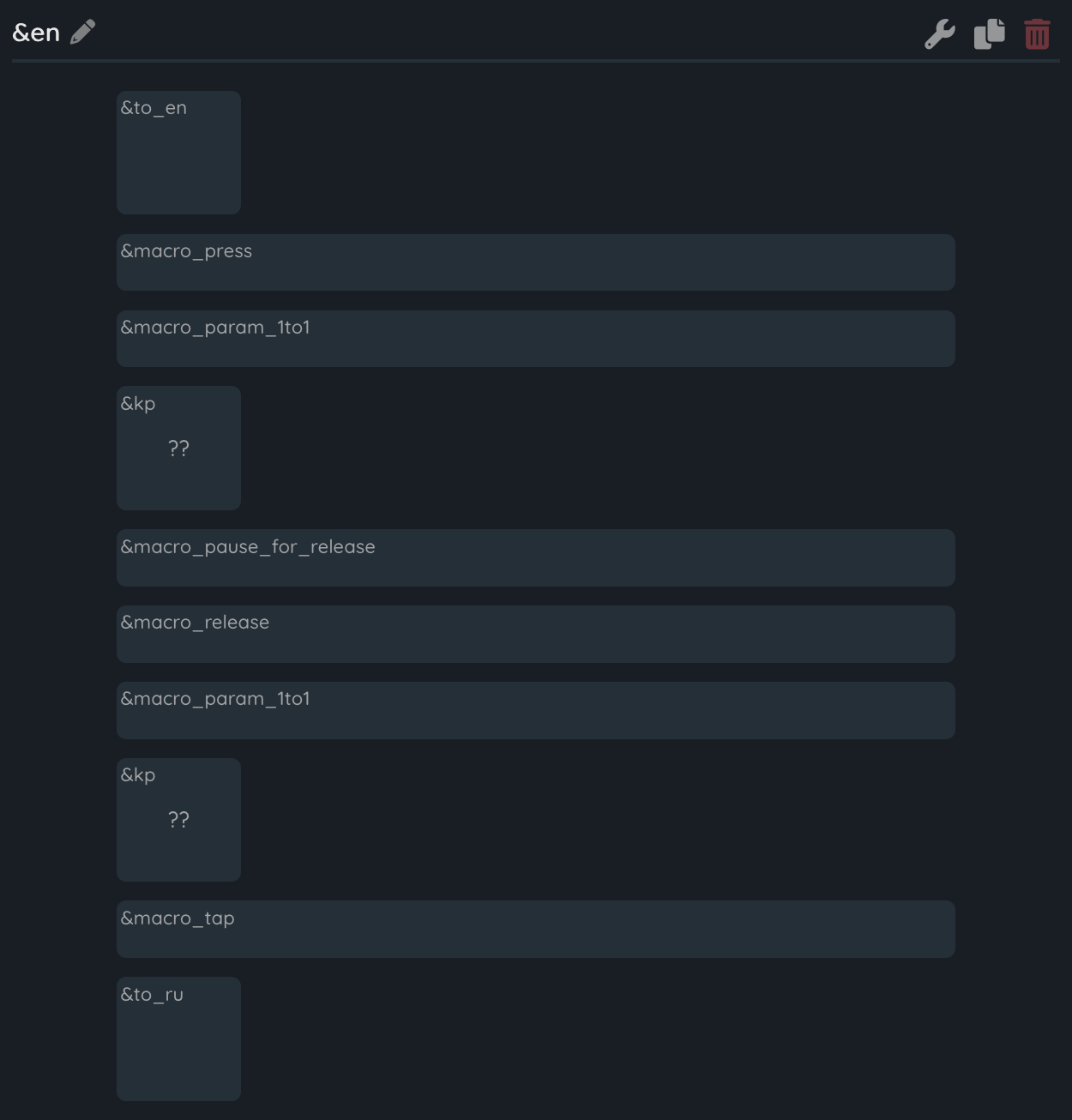
But what if English is currently enabled, because if we use this macro on it, the symbol “&” will be printed and the last step will switch the language to Russian? The layer functionality in the keyboard helps us again with the solution to this problem. Being in English, in order to print this symbol, there is no need to switch to another language, and we can simply assign the standard behavior &kp AMPS to the desired key.
There are not very many symbols that are only in the Russian layout, and there is no macro for them in the
ruenlayout, but if you suddenly wanted to print the symbol “№” in any layout, you can create a macro&ruby copying the macro&enand swapping the key combinations for switching the language in the OS.
Symbol Layer
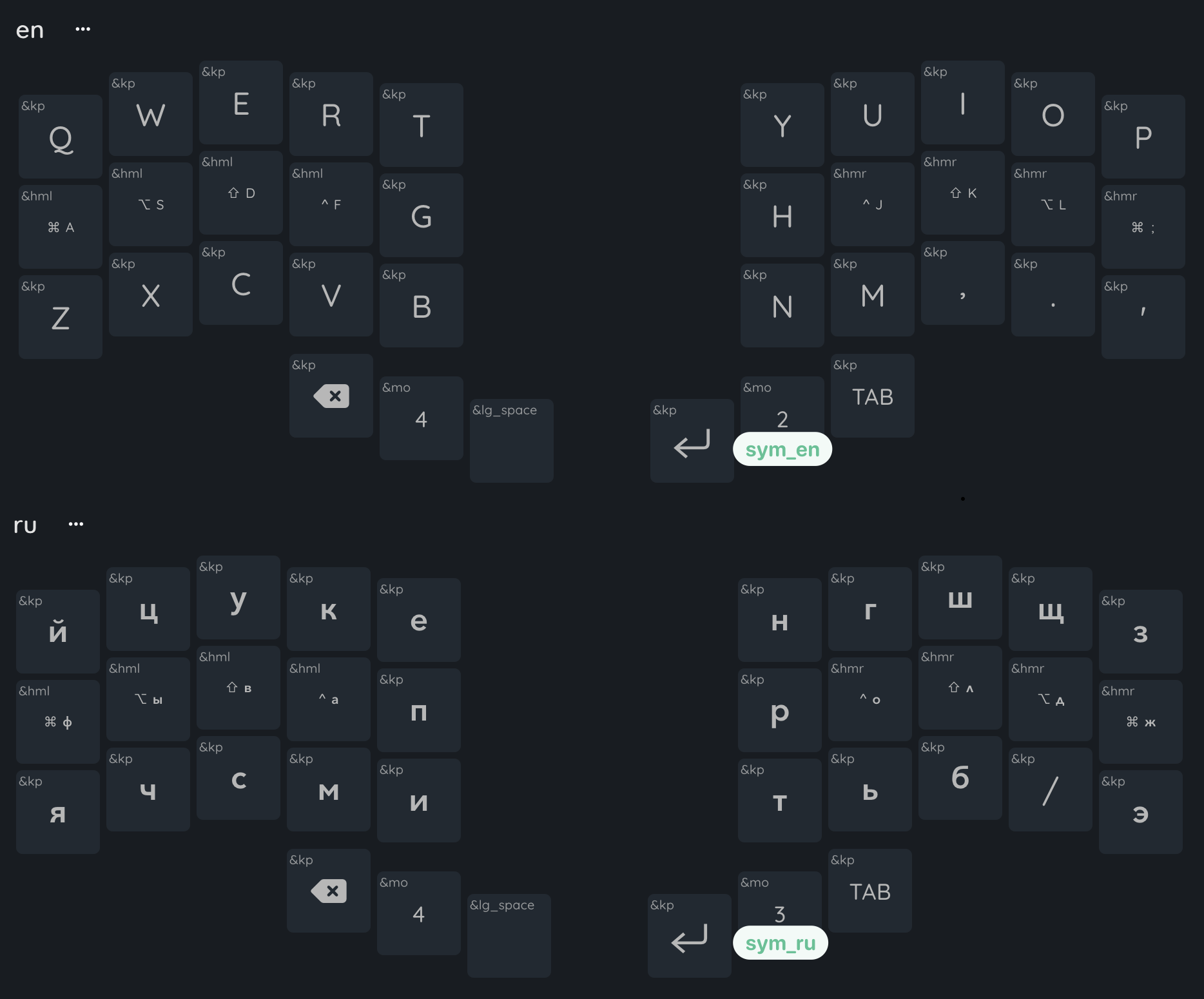
On the basic layers ru and en, there are certainly not enough buttons for all the necessary symbols, and in general it may be more convenient to place the symbols on a separate symbol layer, to apply the ruen approach to create a separate symbol layer, you will need to create 2 separate layers, one for printing symbols while in Russian, and the second for printing symbols while in English. In the ruen layout, these are the sym_en and sym_ru layers by default.
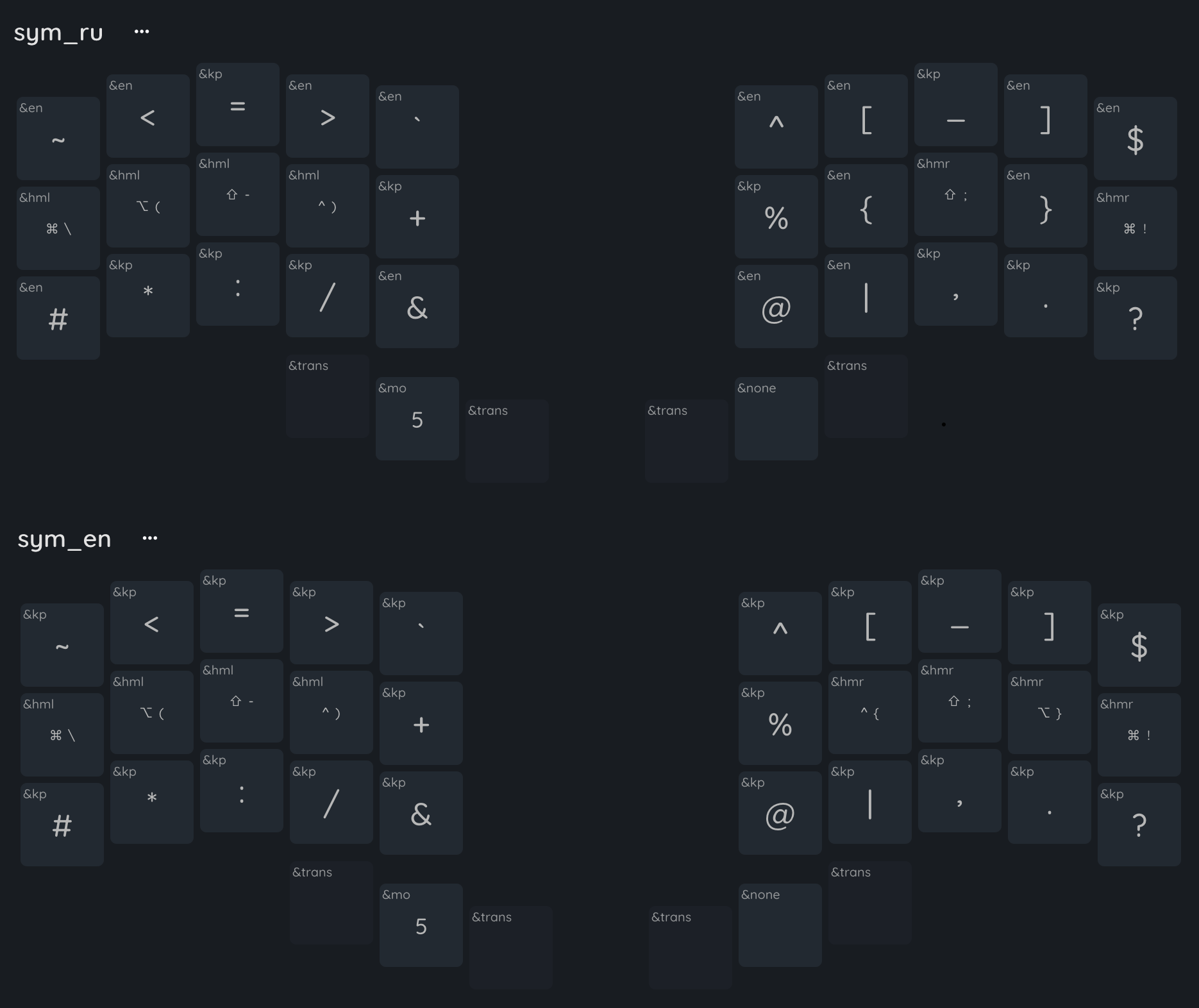
To maintain synchronization of languages in the OS and keyboard, the transition to sym_ru must occur from the ru layer, and to sym_en from the en layer, thus the keyboard will understand which language is currently active, and will send actions corresponding to the current language to print the symbol.
The
&slbehavior is also great for switching to language symbol layers, activating the symbol layer with one press, and then returning the user to the previous active layer, if necessary, such a key can be held down and it will work like a regular&mo.
Displaying Cyrillic in keymap-editor
For the convenience of modifying the layout in the firmware, the ruen keycodes aliases, such as RU_COMMA or RU_CYRILLIC_TSE, have been added, displaying the symbols of the Russian layout on the layout, while pressing RU_COMMA in the OS will transmit the scan code SC_SLASH since in the standard QWERTY layout the period is located on the slash key.
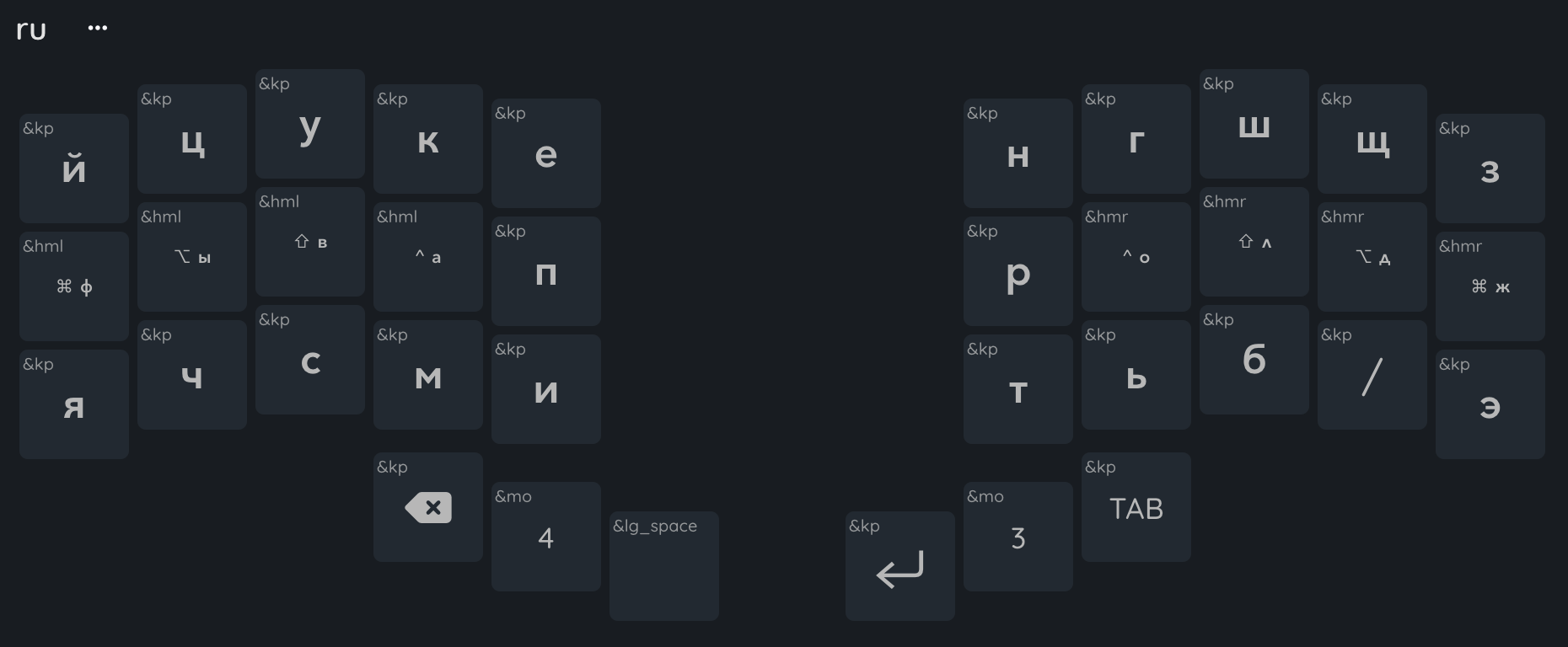
These keycodes facilitate visual understanding of the layout, while RU_COMMA is simply an alias for the keycode SLASH, and if the English layout is enabled in the OS when RU_COMMA is pressed, a slash will be printed.
It is very convenient to configure layouts other than QWERTY with these keycodes-aliases.
Toggle Language Switching
Full RuEn operation can also be achieved using standard key combinations for switching the language in the OS, such as GUI + Space, Ctrl + Space. To achieve this, when you press the language switching key combination, we must also switch the layer in the keyboard.
Let’s consider how to implement this using the example of the GUI + Space combination.
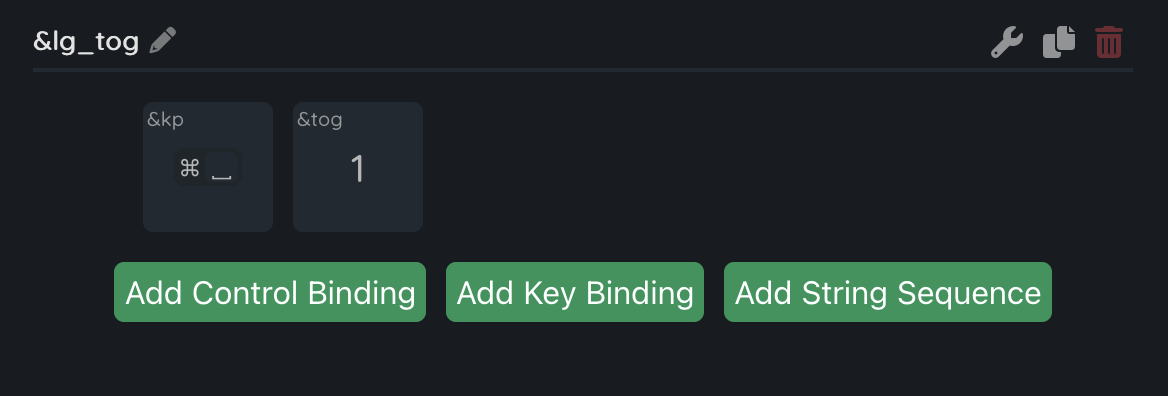
The first step is to create a macro &lg_tog consisting of two actions - pressing GUI + Space and &tog 1. &tog 1 will enable the ru layer if we are on the en layer, and vice versa, will enable en if ru is currently active. With this macro, we simultaneously toggle both the language in the OS and the layer in the keyboard.
Next, in order to get out of situations when the ru layer is enabled on the keyboard, and English is in the OS, we need a way to synchronize the language states. To do this, you can assign the &tog 1 behavior to one of the keys, and when a desynchronization occurs - just press this key and the states will be synchronized again.
The toggle model approach is not preferred precisely because of the need to separately synchronize the OS language states with the keyboard. Having 2 separate key combinations for languages, synchronization occurs regularly, when
&layer_enor&layer_ruis pressed.
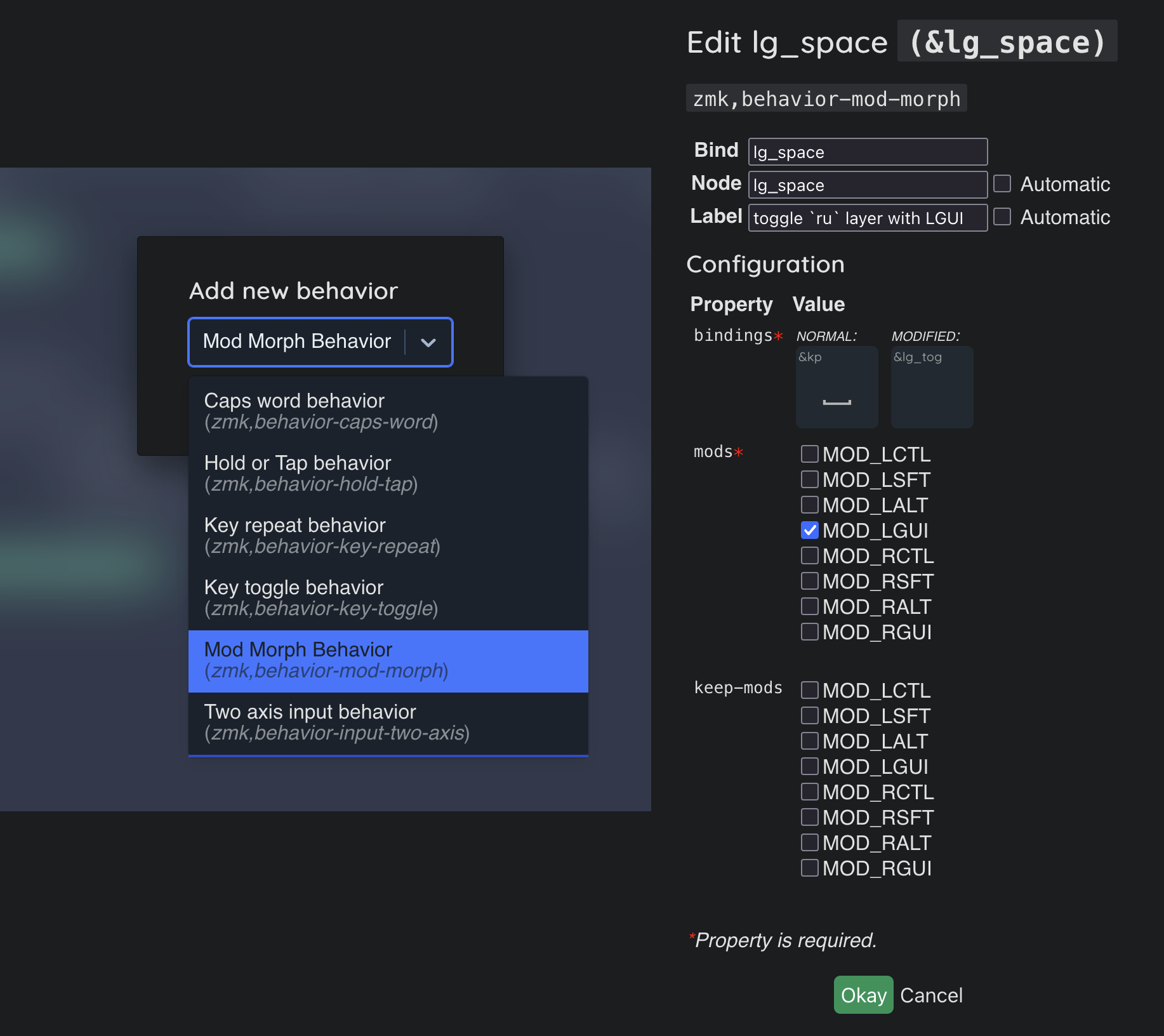
The next step is to make the macro &lg_tog created earlier triggered when the GUI + Space combination is pressed on the keyboard, for this we will need the mod-morph behavior from ZMK.
- Create a new custom behavior of the Mod Morph Behavior type;
- Name it “lg_space”;
- When
&lg_spaceis pressed without the “LGUI” modifier, theNORMALaction will be triggered and&kp SPACEwill be pressed; - If the “LGUI” modifier was held down when
&lg_spacewas pressed, thenMODIFIEDwill be triggered and the macro&lg_togwill be called.
We also need to change the key combination for changing the language in the &to_ru and &to_en macros, since these macros are used in the &en macro, which is used for printing symbols.
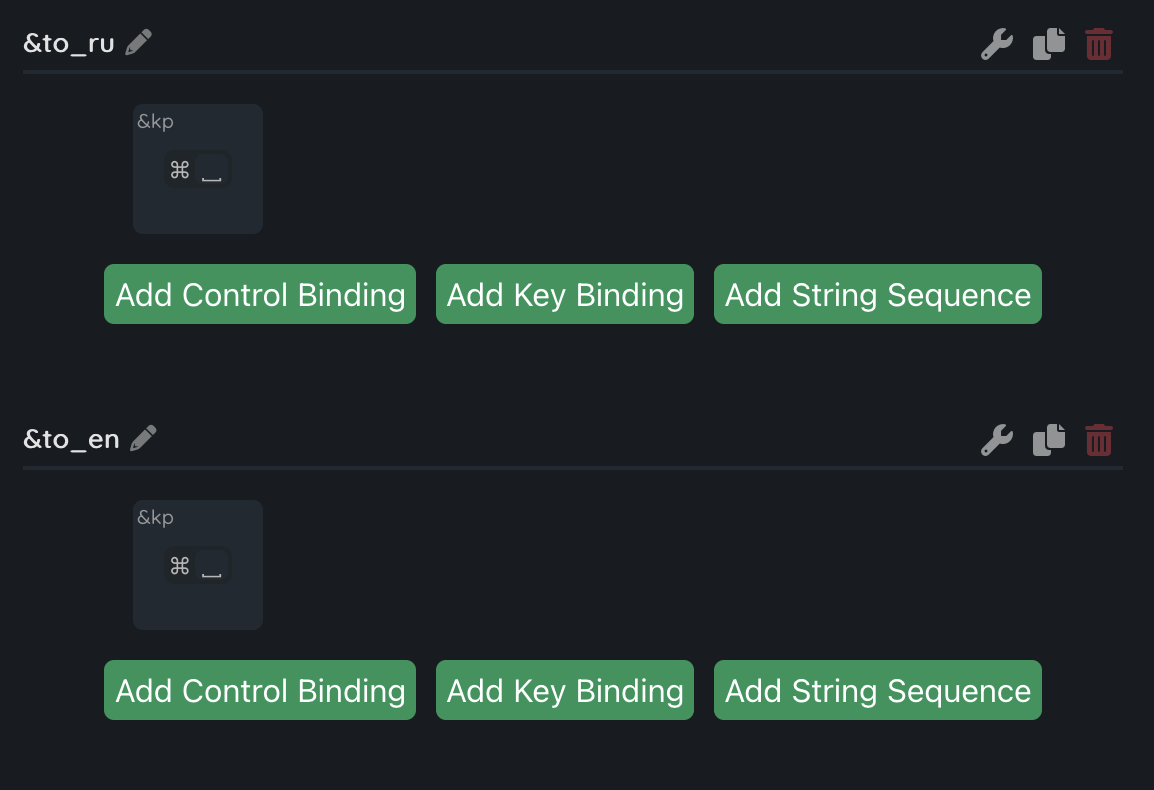
The last step is to assign the created mod-morph instead of the regular space on the desired layers, and that’s it, the language states in the OS and keyboard will be switched synchronously.
Android devices also use the
GUI + Spacekey combination to switch the language, if you choose this switching method, then ruen will also work on your phone and tablet.
Switching via GUI + Space without the need for synchronization
It is possible to get rid of the need for manual language synchronization when using switching by pressing GUI + Space using a hybrid of switching by the toggle model and switching by separate key combinations, as is done with the combo in the ruen layout by default, you will still need to configure separate combinations in the OS, but you can press the usual key combination to switch the language.
We configure the key combinations Ctrl + Shift + 1 in the OS to enable English, and Ctrl + Shift + 2 to enable Russian and create two mod-morph behaviors:
&en_space: without modifiers, pressing&kp Space, with theLGUImodifier, calling the macro&layer_en;&ru_space: without modifiers, pressing&kp Space, with theLGUImodifier, calling the macro&layer_ru.
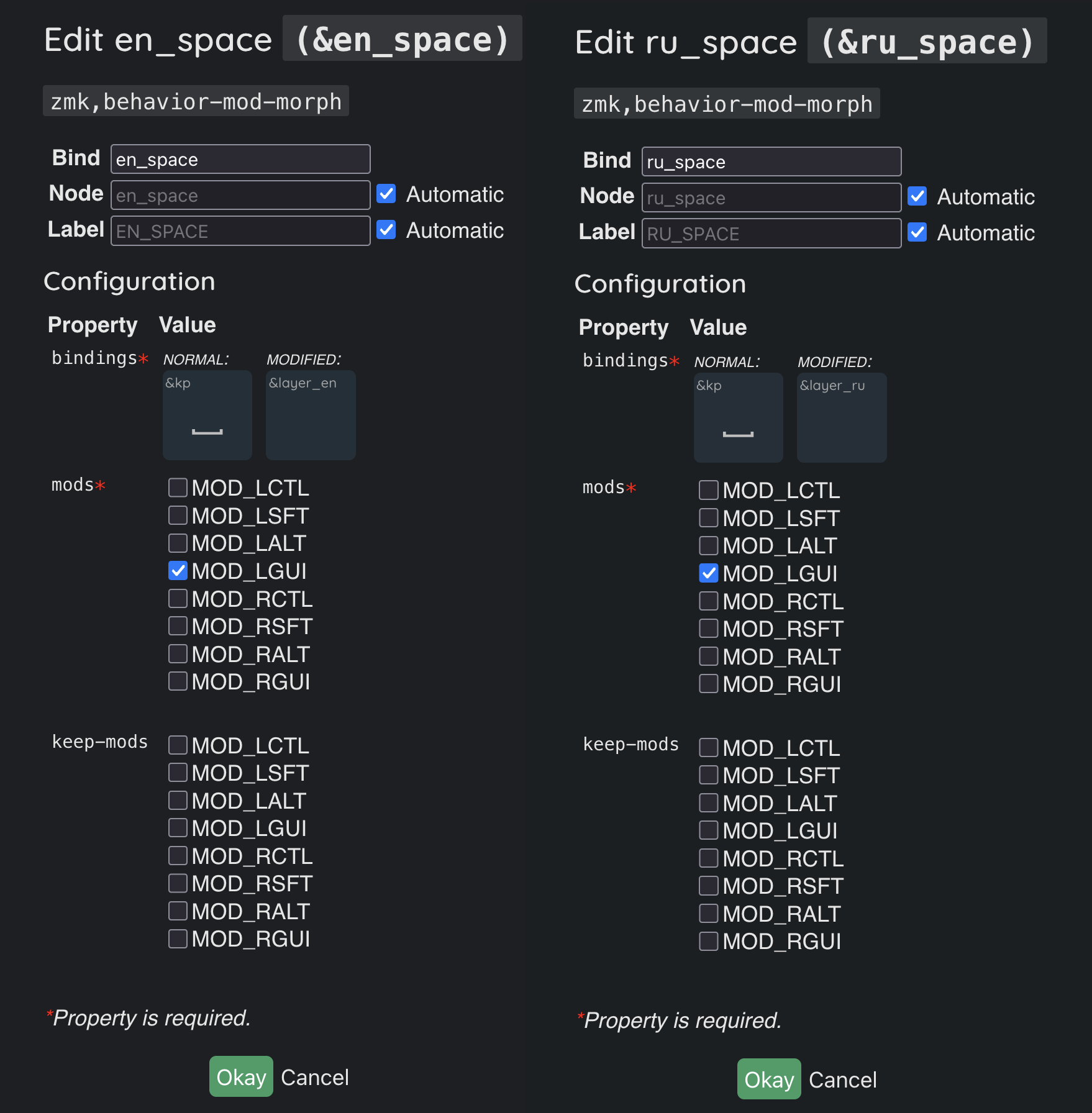
Next, we assign the &ru_space behavior instead of &kp Space on the en layer, and the &en_space behavior instead of &kp Space on the ru layer. Now, when you press GUI + Space, the language will be switched in the OS and the language in the keyboard will be synchronized at the same time.
Combo
Configuring the layers on which this combo is active will help us implement printing symbols from any language in the combo.
Let’s create a combo that prints the symbol “#” when the “N” + “M” keys are pressed.
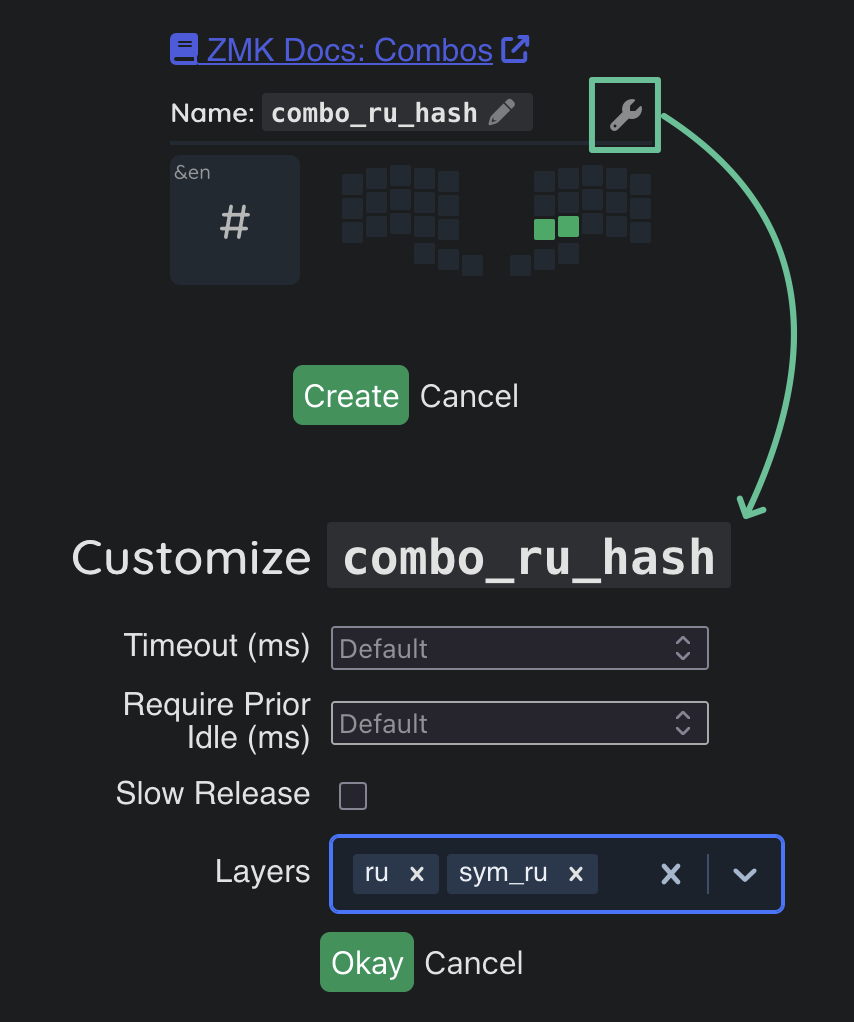
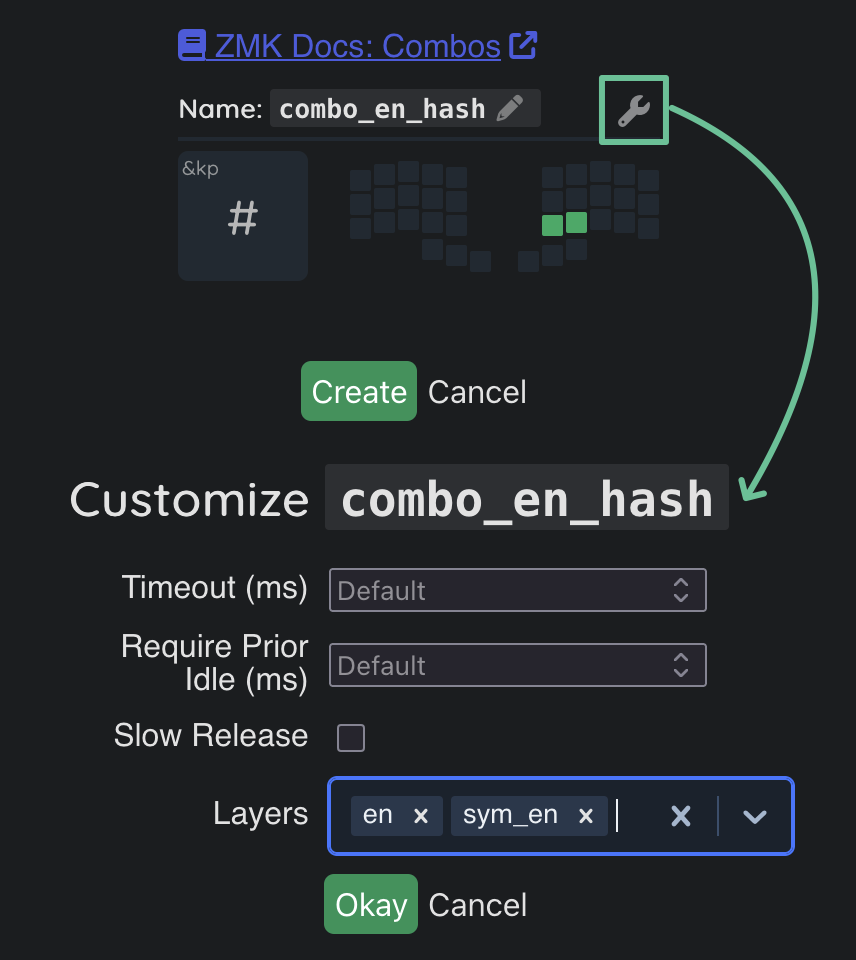
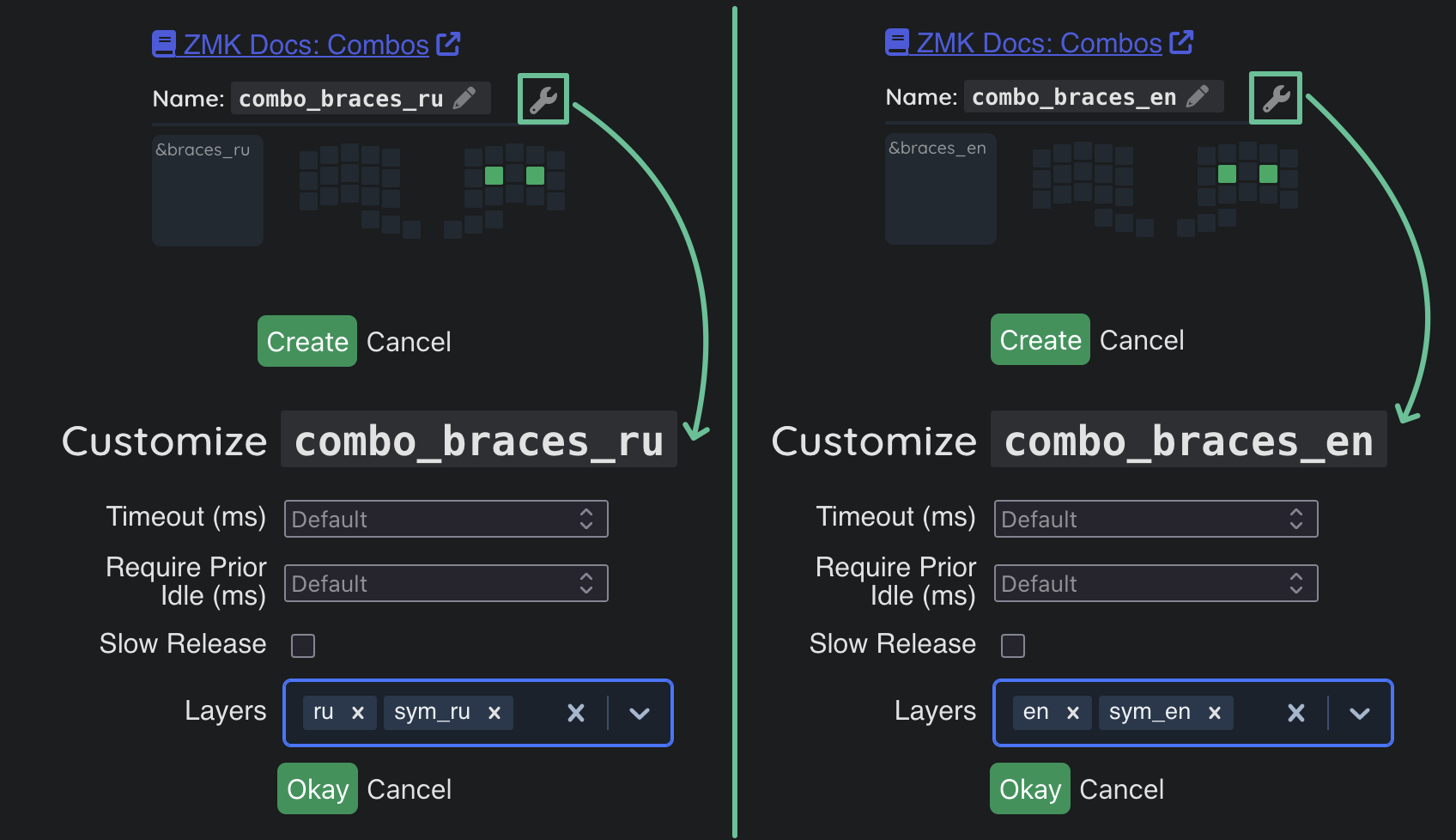
To implement the ruen behavior in the case of the symbol “#”, we will need to create 2 separate combos: one will describe the actions necessary to print the symbol if the Russian language is currently active, the second combo will describe the actions in the case if the English language is currently active.
- Combo for the Russian language. To print the symbol “#” in Russian, we will need the macro
&ensince “#” is not in the Russian layout, we select the macro and pass the keycodeHASHin the parameter. To set the layers on which the combo is active, you need to click the button with the wrench icon, click it and select the ru and sym_ru layers.
- Combo for the English language. The symbol “#” is in the English layout, we assign the regular
&kp HASHas the action for the combo. We also configure the combo to be active only on the en and sym_en layers.
Macros
Macros also go well with the ruen approach, allowing you to print symbolic constructions or text templates regardless of the current language.
Let’s consider the example of a macro that will print two curly braces {}, and press the left arrow to move the cursor between the braces.
To print curly braces regardless of the language, we will need to create two separate macros for each language.
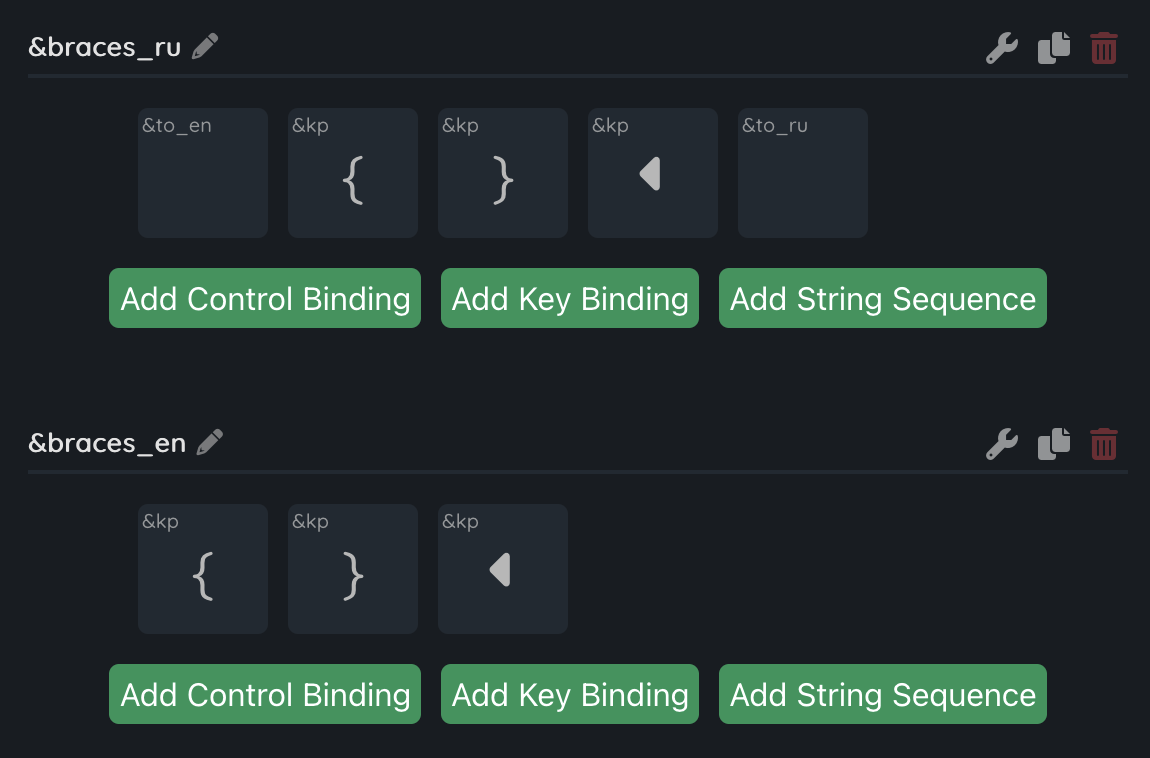
We will assign the macro call to the “J” + “L” key combo, this arrangement will be easy to remember, because the curly braces on the symbol layer are in the same places.
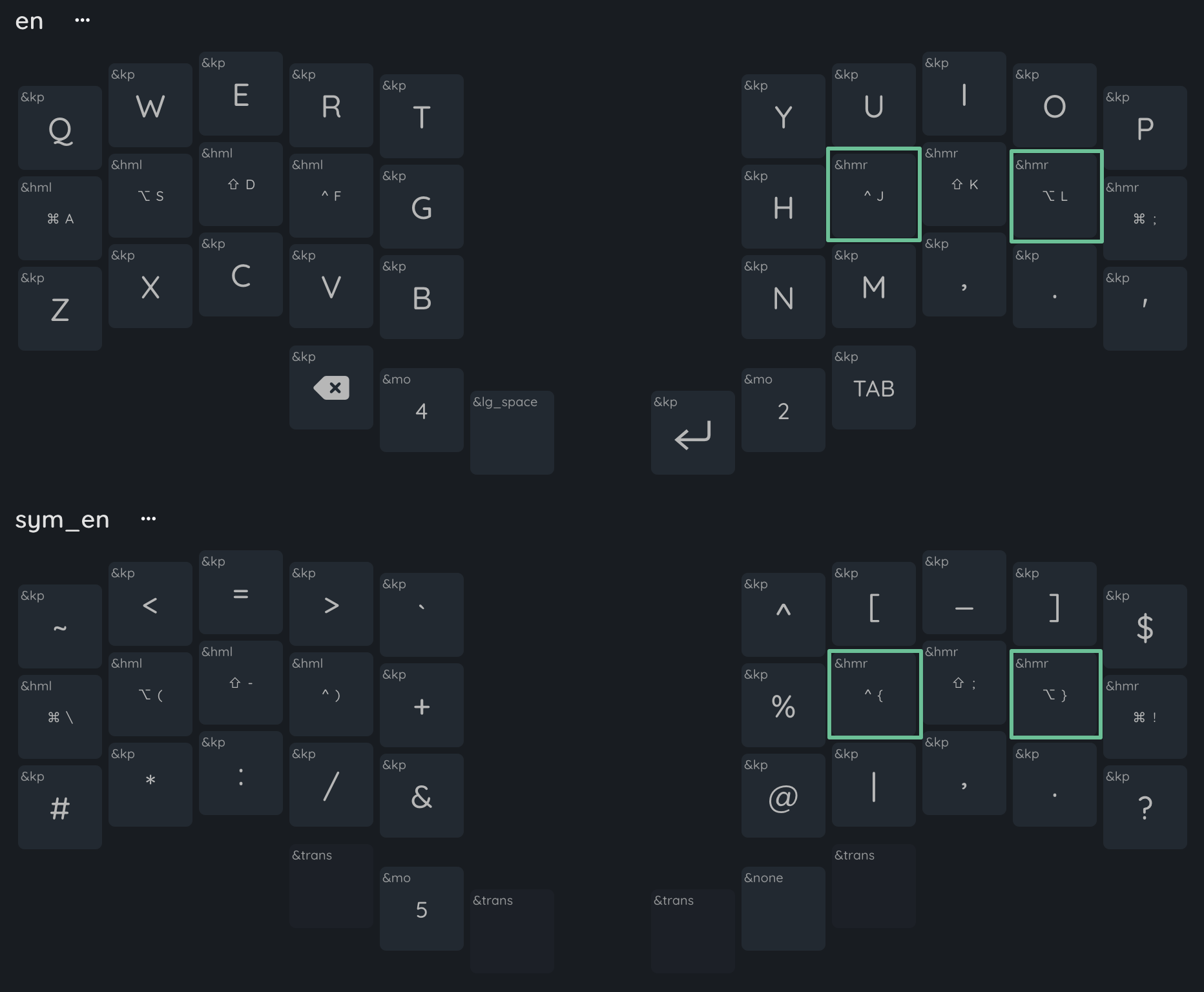
If using a combo is inconvenient, you can simply assign these macros to the appropriate keys on the corresponding language layers.
We create a combo, configure the layers on which this combo is active, and that’s it, curly braces are available in any language on the base layer!
It may also be convenient to use similar combos for square brackets, parentheses (parentheses are in the same places in both languages and do not require the creation of 2 macros) and double quotes.
Caps Word in Russian Layout
ZMK has a built-in Caps Word behavior, at the moment it works great in English, but, unfortunately, there are problems with Russian letters, because the letter “Б” is located on the DOT key, and although we can configure Caps Word not to be interrupted after pressing this letter, it will not be possible to print a capital “Б” with the regular Caps Word. However, it is possible to simulate this function using layers.
To recreate the Caps Word behavior, you will need to:
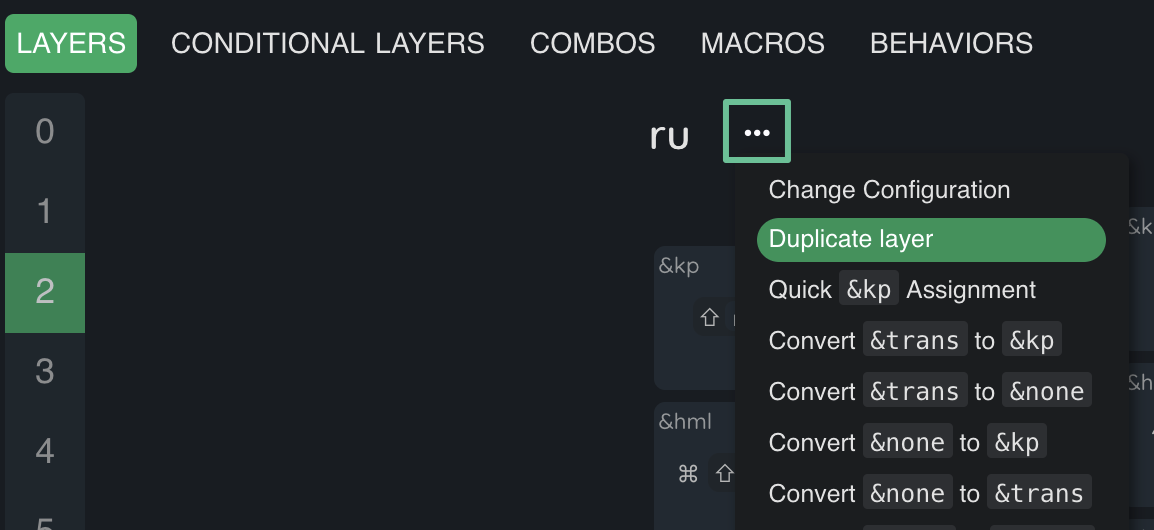
- Duplicate the ru layer, it is most convenient to do this in keymap-editor, by clicking ••• -> Duplicate layer.
- Add the
LShiftmodifier to all keys that print letters. Thus, when you get to this layer, all printed letters will be capitalized.
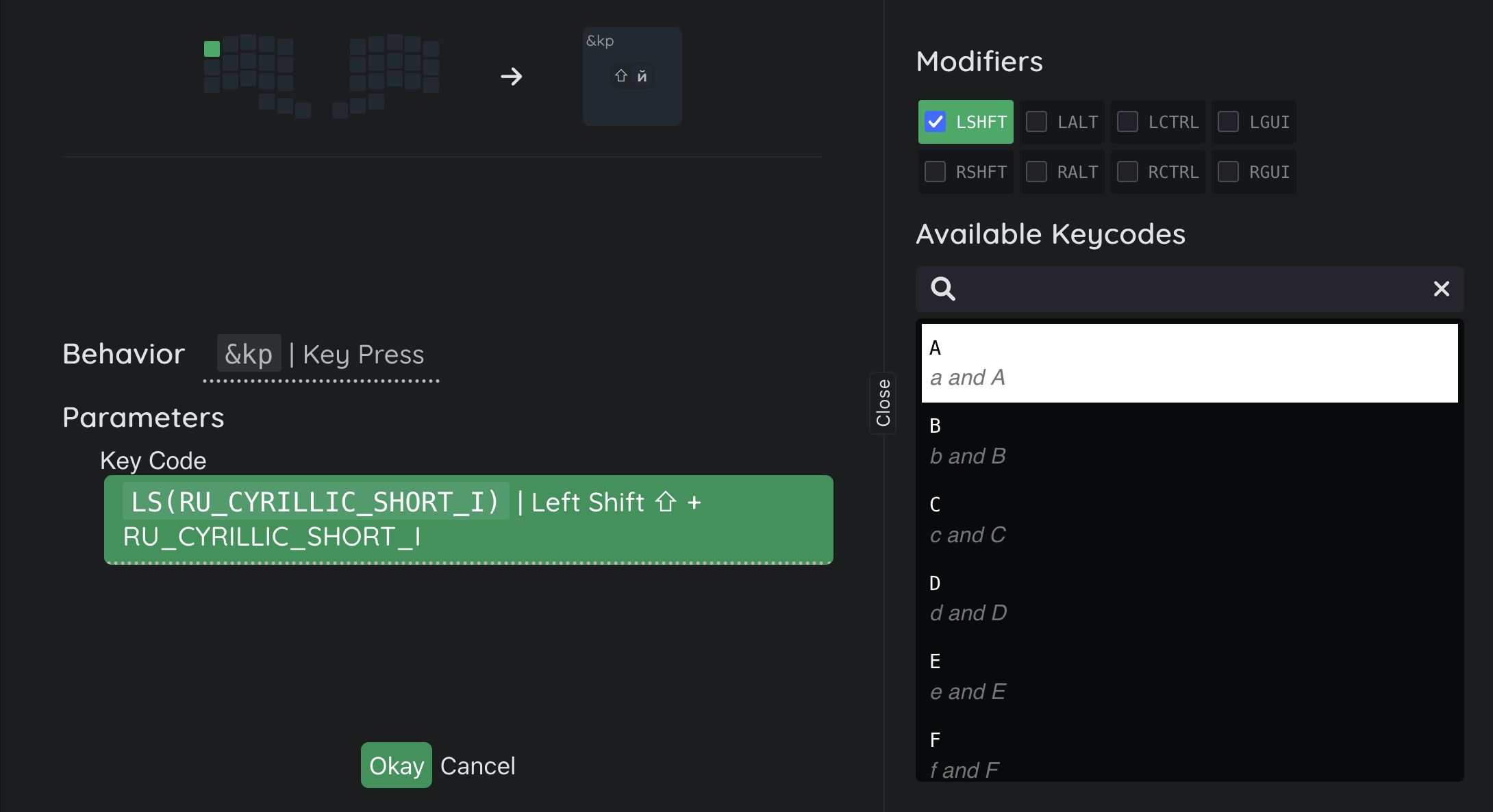
- In the example, we will consider activating the Caps Word mode by pressing the “C” + “V” key combo. For the en layer, we will create a combo with the standard
&caps_wordbehavior, the combo should only be activated on the en layer. For the ru layer, we will create a combo with the&tog 2behavior (2 is the number of the cw_ru layer), on the “C” + “V” keys, we will limit this combo to only trigger on the ru and cw_ru layers.
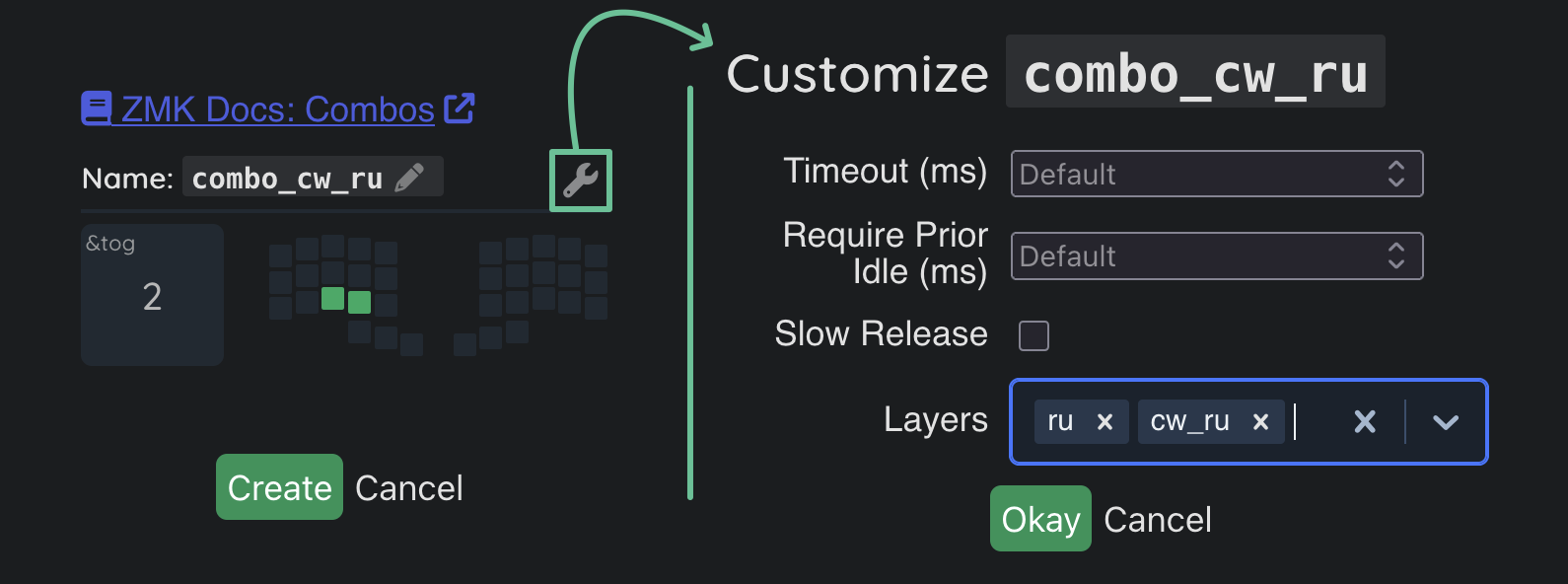
To recreate the activation of Caps Word by pressing
LShift+RShift, as in wired keyboards on QMK, you can use the mod-morph behavior.
- Next, we will make the cw_ru layer turn off after pressing the spacebar, for this we will create a parameterized macro
&cw_off. The first action of the macro will return the keyboard to the ru layer by pressing&to 1, the second action will press the symbol passed in the parameter.
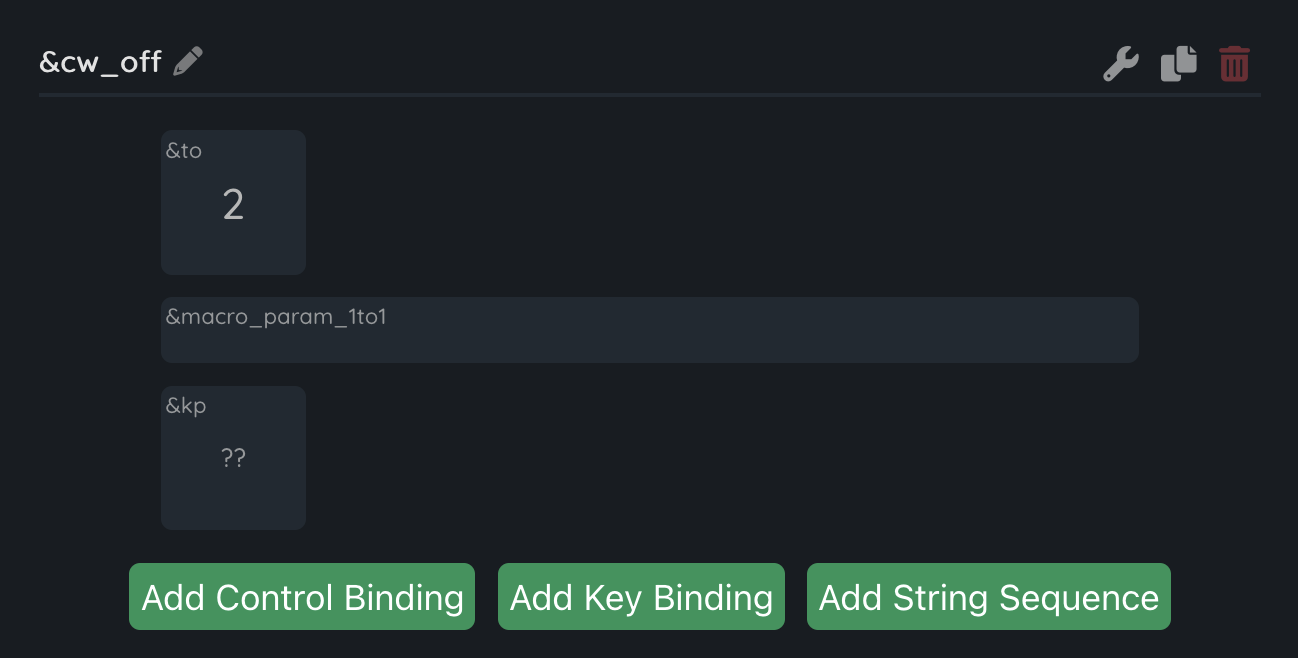
We assign the created macro &cw_off to the cw_ru layer in place of &kp SPACE, specifying a space in the parameter, and that’s it, we have recreated the Caps Word behavior for the Russian language.
Similarly, you can recreate the
RuEn wordfeature from the RuEn implementation in QMK, we just create a separate layer for this feature, select a key to switch to this layer, and also a key that will turn off this layer. You can also implement, for example,Num Wordto enter several digits and switch back to the letter layer, it may be useful if you often enter IP addresses, because you can configure theNum Wordlayer not to turn off when you press periods.