Imperial44
Connection
- Before connecting the keyboard to the computer, make sure that the USB-C cable is firmly connected to the connectors on both halves
- When connecting the keyboard to the computer, make sure the USB-C cable is firmly inserted into the connector
Customizing keyboard
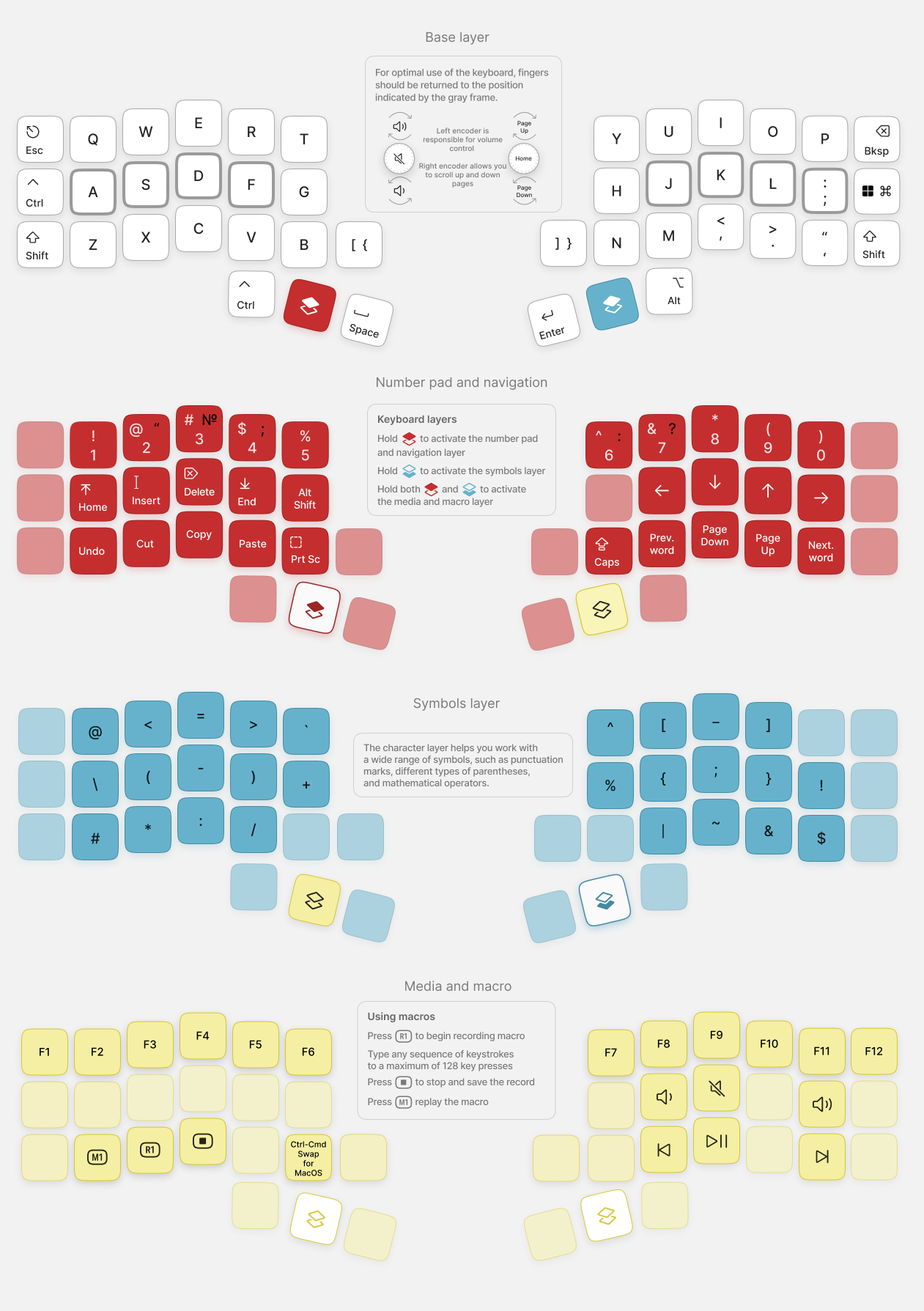
Please refer to the Vial guide
Firmware update
Preparation
- Download the latest firmware here
- Save your layout in the Vial program by clicking on the “File” menu, then “Save current layout”
Installation
Left half:
- Hold the top left key and connect the USB cable to the left half
- Wait until the controller enters bootloader mode and the storage folder opens
- Copy or drag the Uf2 file, after which the controller should instantly reboot and start working in normal mode
- Import the layout into the Vial program by clicking on the “File” menu, then “Load saved layout”
Right half:
- Hold the top right key on the right half and connect the USB cable to the right half
- Repeat the remaining steps as for the left half