K:04 Series
K:04
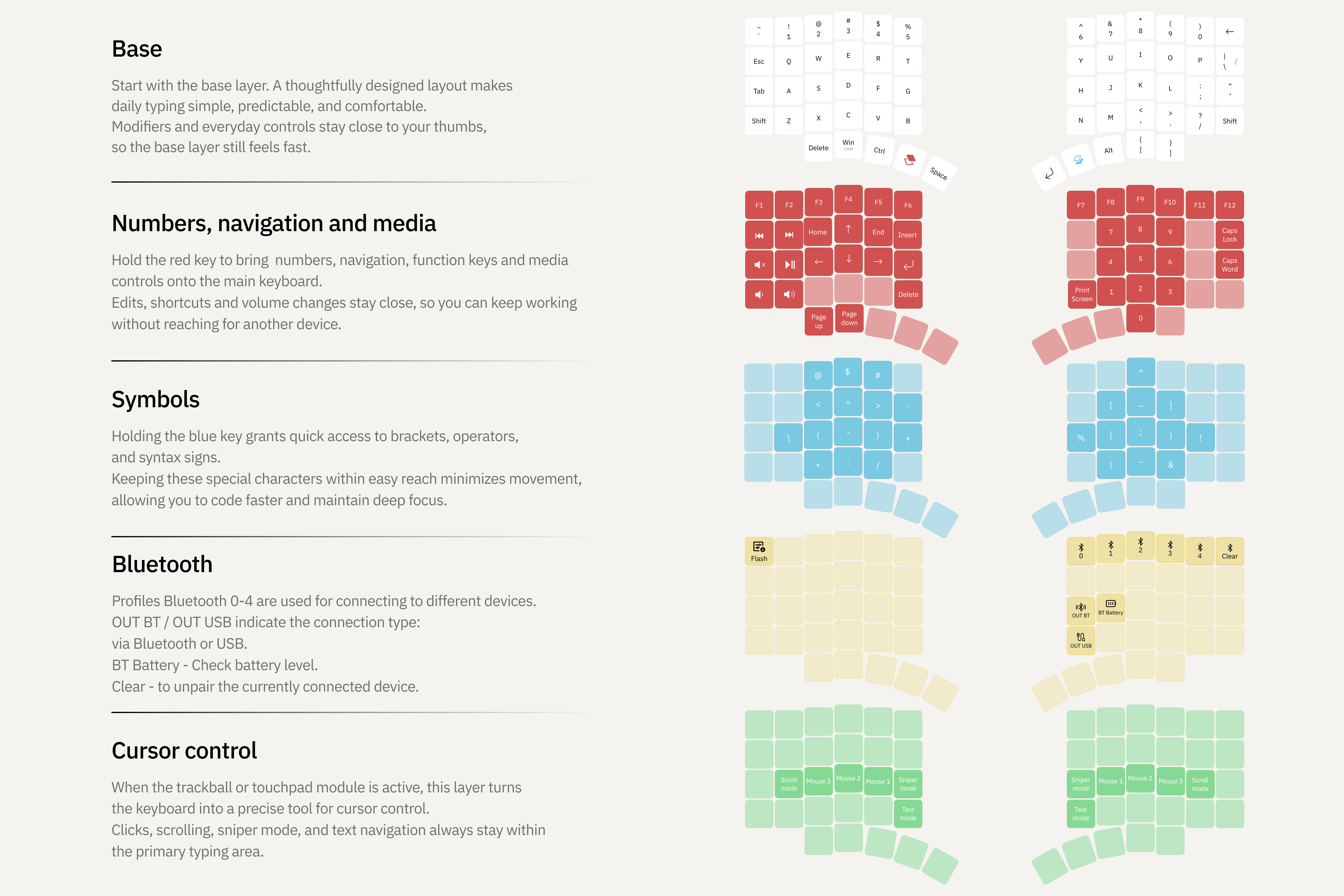
K:04 is a wireless mechanical split keyboard with a modular hot-swap system, 58 programmable keys, and support for a trackball, touchpad, or encoder on either half.
Overview
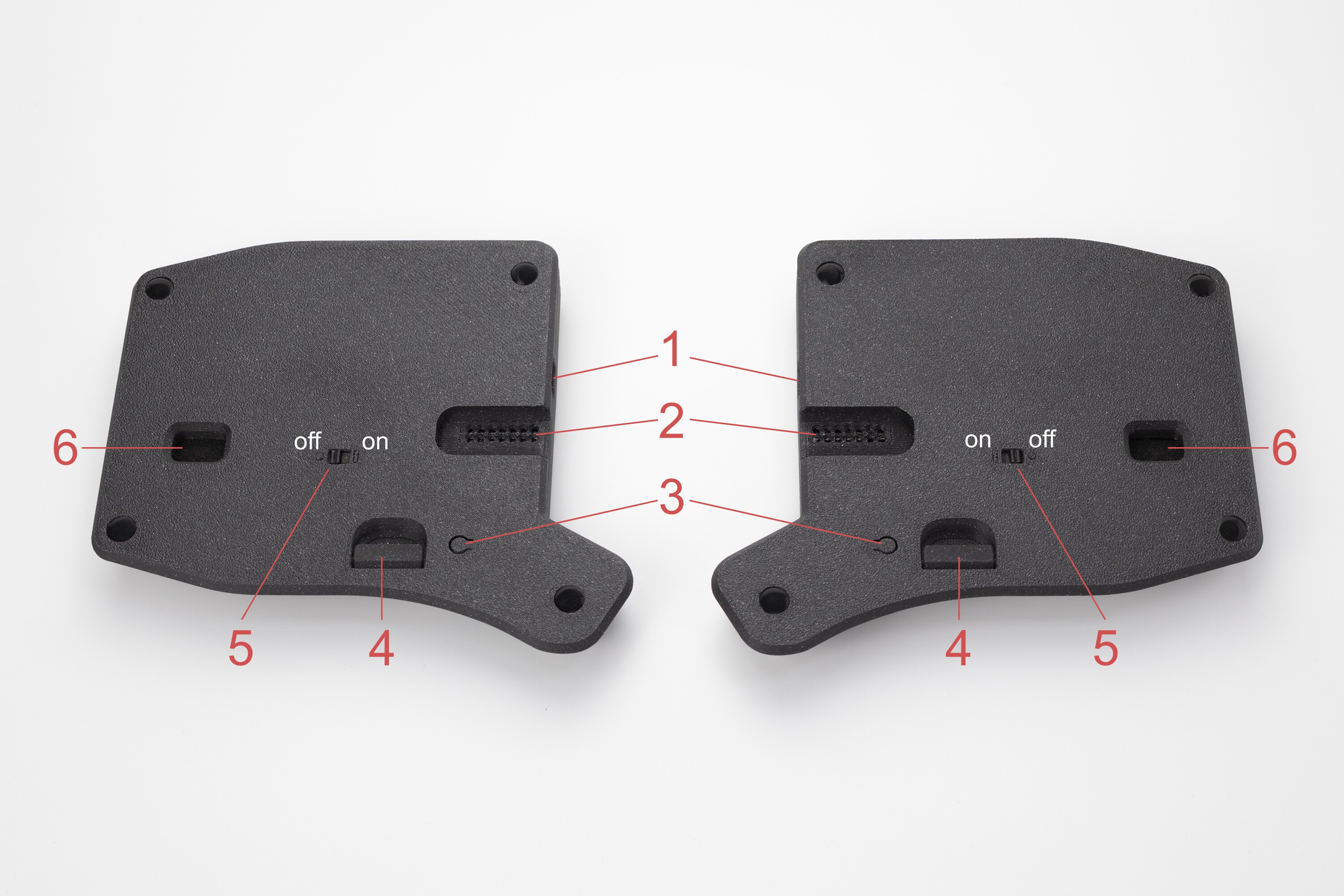
- USB-C connector
- Hot-swap socket for connecting modules
- Button: single press — reset, double press (quickly) — bootloader
- Case cover plug for use without modules
- Keyboard power switch
- Auxiliary window for disassembling the keyboard case
Additional switch plate
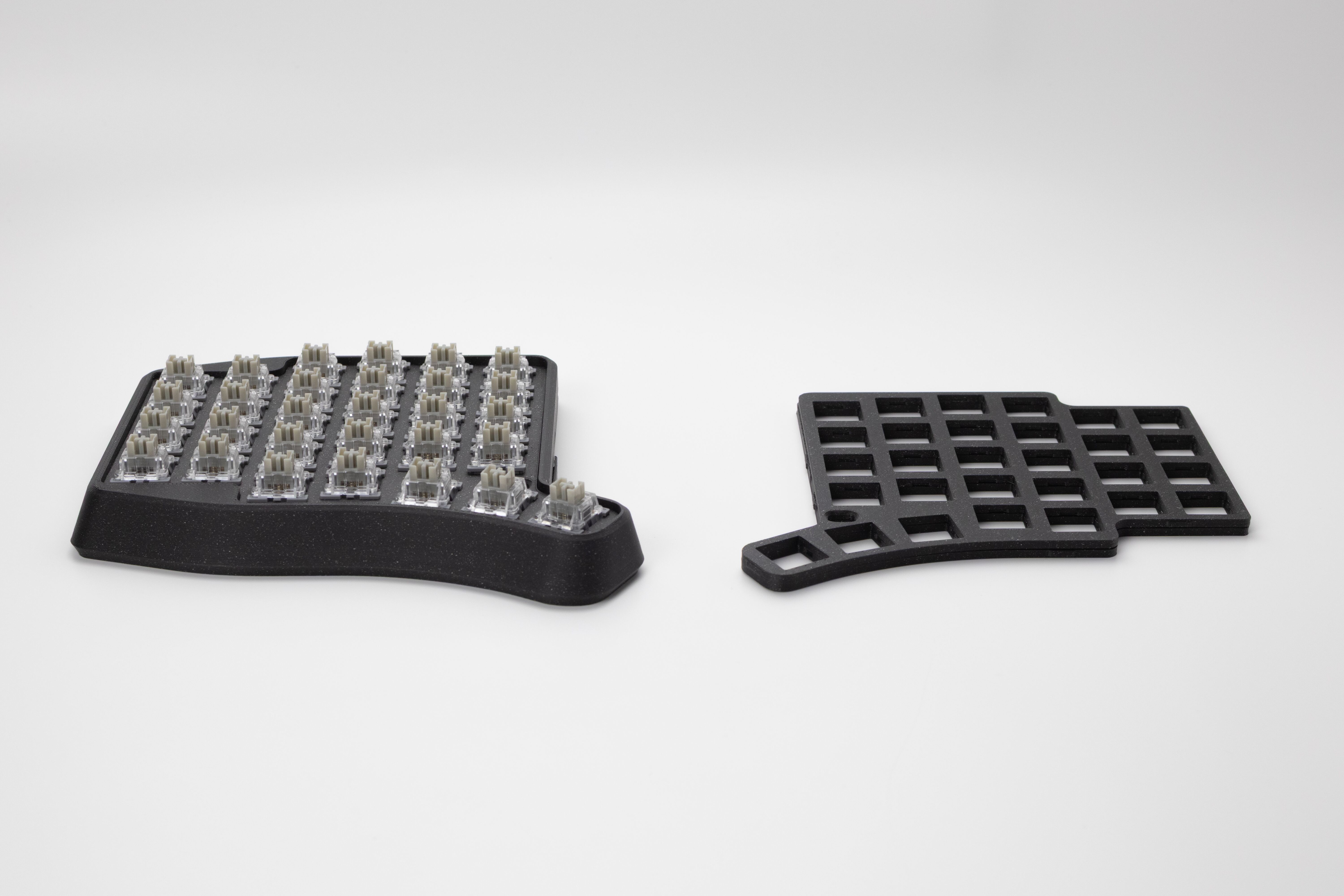
K:04 Series keyboards come with a double switch plate. This is due to the height of the supported MX switches. If you want to use low-profile switches, install only the lower switch plate.
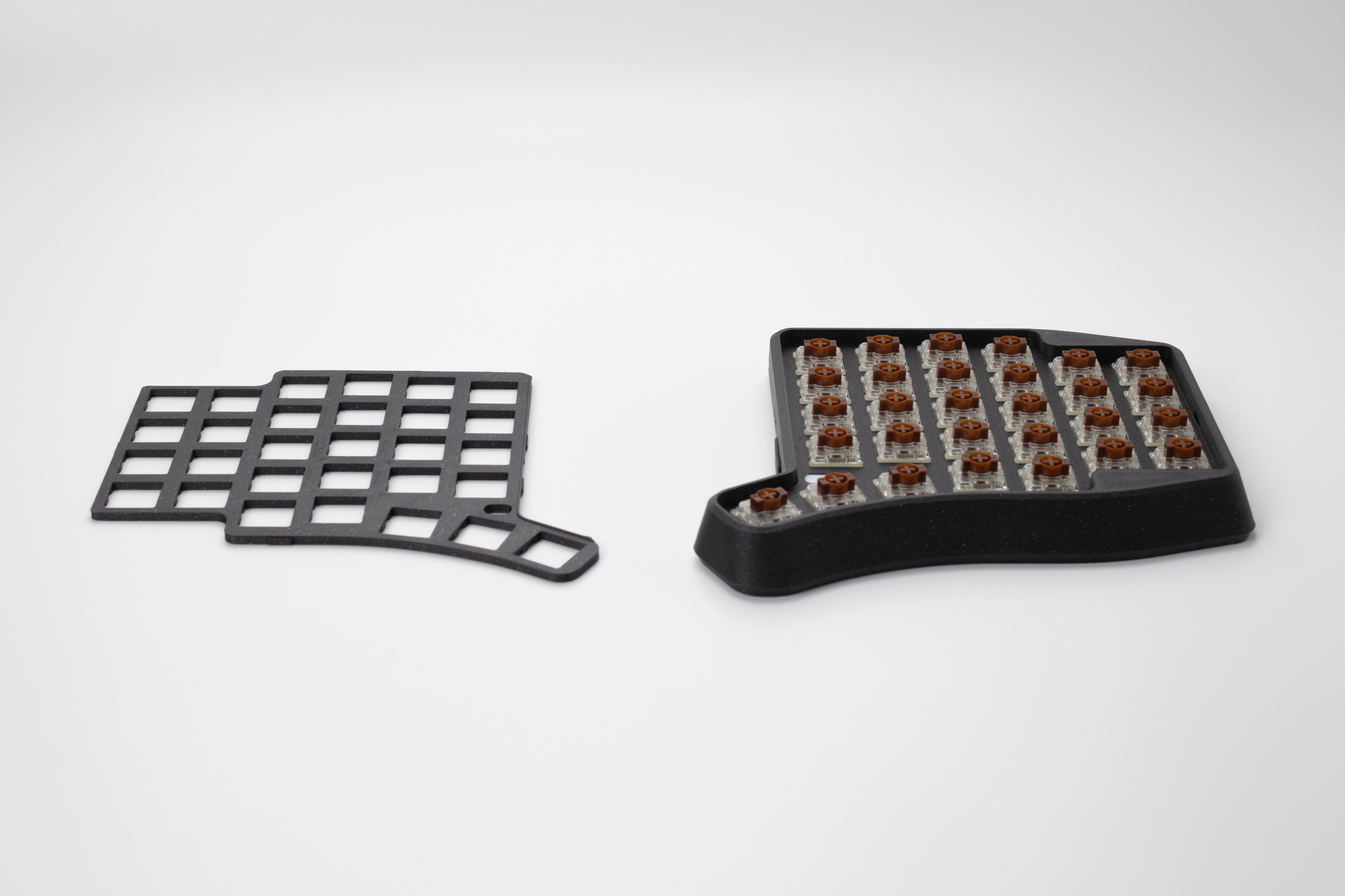
To install mid-profile switches, use both switch plates.
LED indication
- Layer color — shows the color of the active layer 0-15 on both halves; configured in Entropy
- BT profile — briefly shows the selected profile color on the left half when switching BT0-BT4
- Battery charge level — shows the charge level of each half by color: 0-20% red, 21-40% orange, 41-74% yellow, 75-100% green
- Low battery — if the charge is <=20%, each half shows its charge with a short red blink every 2 seconds
- BLE advertising — the left half slowly blinks blue: the keyboard is available for connection
- BLE reconnecting — the left half quickly blinks blue: trying to reconnect
- BLE pairing — the left half blinks cyan twice: pairing mode
- Host connected — the left half blinks green twice: the keyboard has connected to the computer via Bluetooth
- Split missing — one of the halves briefly blinks yellow: the other half is not connected
- Split unpaired — one of the halves briefly blinks orange: the halves are not paired or the pairing has been reset
- Split connected — both halves blink yellow twice in short flashes: the halves have connected
- System off / deep sleep — both halves briefly light up purple before going to sleep
Connection
- K:04 works with devices running Windows, macOS, Linux, Android, and iOS
- The keyboard connects via Plug and Play (PnP); no additional driver installation is required
- The keyboard ships ready to connect to your device with the firmware current at the time of purchase
Wired connection
The keyboard supports wired connection via USB-C. Use the included cable or any other USB-C cable that supports data transfer.
Wireless connection
- Turn on both halves of the keyboard — the halves are already synchronized with each other
- Select a connection profile on the keyboard — if you need to connect to multiple devices, you can skip this step for the first connection
- Connect the keyboard to your device — enable Bluetooth on the device, then pair it in the device settings
Connecting additional devices
- Enable Bluetooth on the device you want to connect the keyboard to
- Turn on the keyboard by switching the power switches on the bottom covers of both halves to the ON position — the keyboard will enter pairing mode
- Switch the BT profile on the keyboard using the corresponding keys (layer 3 in the default layout)
- Start a Bluetooth search on your device and find the keyboard in the list
- Connect the keyboard to your device
Modules
K:04 supports a modular system for both keyboard halves.
- Ball size: 32 mm
- Scroll Mode for smooth scrolling
- Sniper Mode for precise cursor control
- Text Mode for convenient text navigation
Modular System Connection Notes
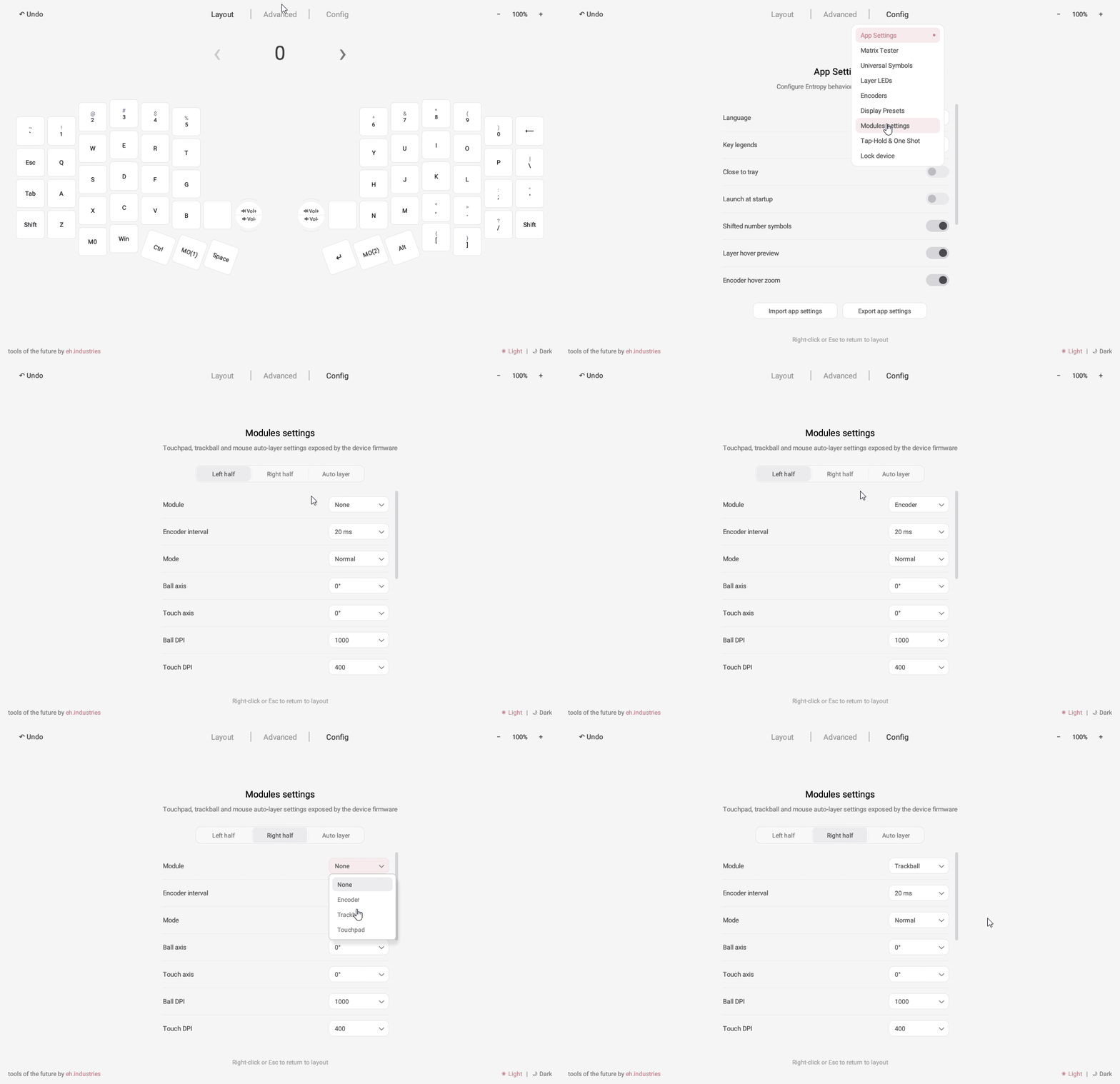
- after replacing one module with another, select it in Entropy under “Settings” - “Module settings”
- modules can be installed into the sockets on either half without reflashing
- when replacing one module with another, the configuration is preserved
- identical modules can be used on both halves
- if no module is installed, the socket is covered with a neat plug
- each module is configured separately for each half
Configuration
Use the Entropy graphical configurator to remap keys and configure the keyboard.
Module configuration
To use the encoder, touchpad, or trackball module, enable it in the keyboard settings. Open the Entropy configurator, select Configuration - Module settings at the top of the main configurator window, and choose the required module from the drop-down list next to Module.
Firmware Update
Firmware update is required when:
- A firmware update has been released on keymap_hub
- You need to restore the keyboard to factory settings
Preparing for Firmware Update
Download the latest Reset all settings for RMK and K:04/mini/micro firmware files for the left and right halves from keymap_hub.
Settings Reset Firmware
Connect the firmware device (PC, laptop, etc.) to the left half of the keyboard using a USB-C cable, then double-press the Reset button on the back of the keyboard.
Copy or drag the Reset all settings for RMK UF2 file — the keyboard should reboot automatically.
Completing the Firmware Update
Double-press the Reset button on the back of the left half again and wait for it to enter bootloader mode (the storage folder will open).
Copy or drag the K:04/mini/micro UF2 firmware file for the left half — it should reboot automatically.
Firmware update is complete — you can now connect the keyboard to your device!
Care and Maintenance
- Periodically clean the case from dust and dirt using a dry or slightly damp cloth
- For the trackball module: keep the ball, ceramic bearings, and ball socket clean
Support
The keyboard comes with a 3-year warranty and service support.
If you have any questions about setup, firmware, or operation, please contact the Ergohaven Telegram group or knowledge base