Space Mission 30
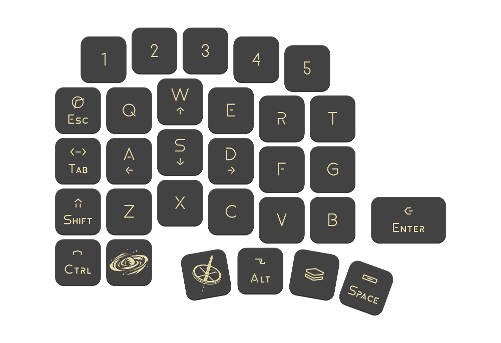
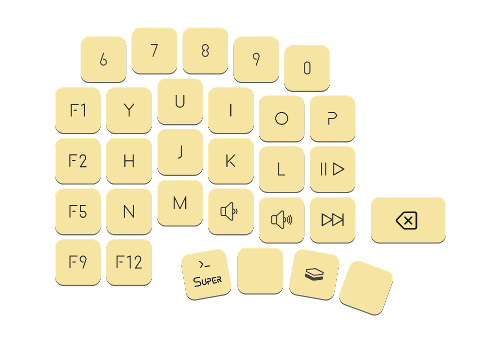
Space Mission 30 — a mechanical gaming keypad built for maximum comfort and flawless victories
Keypad hardware
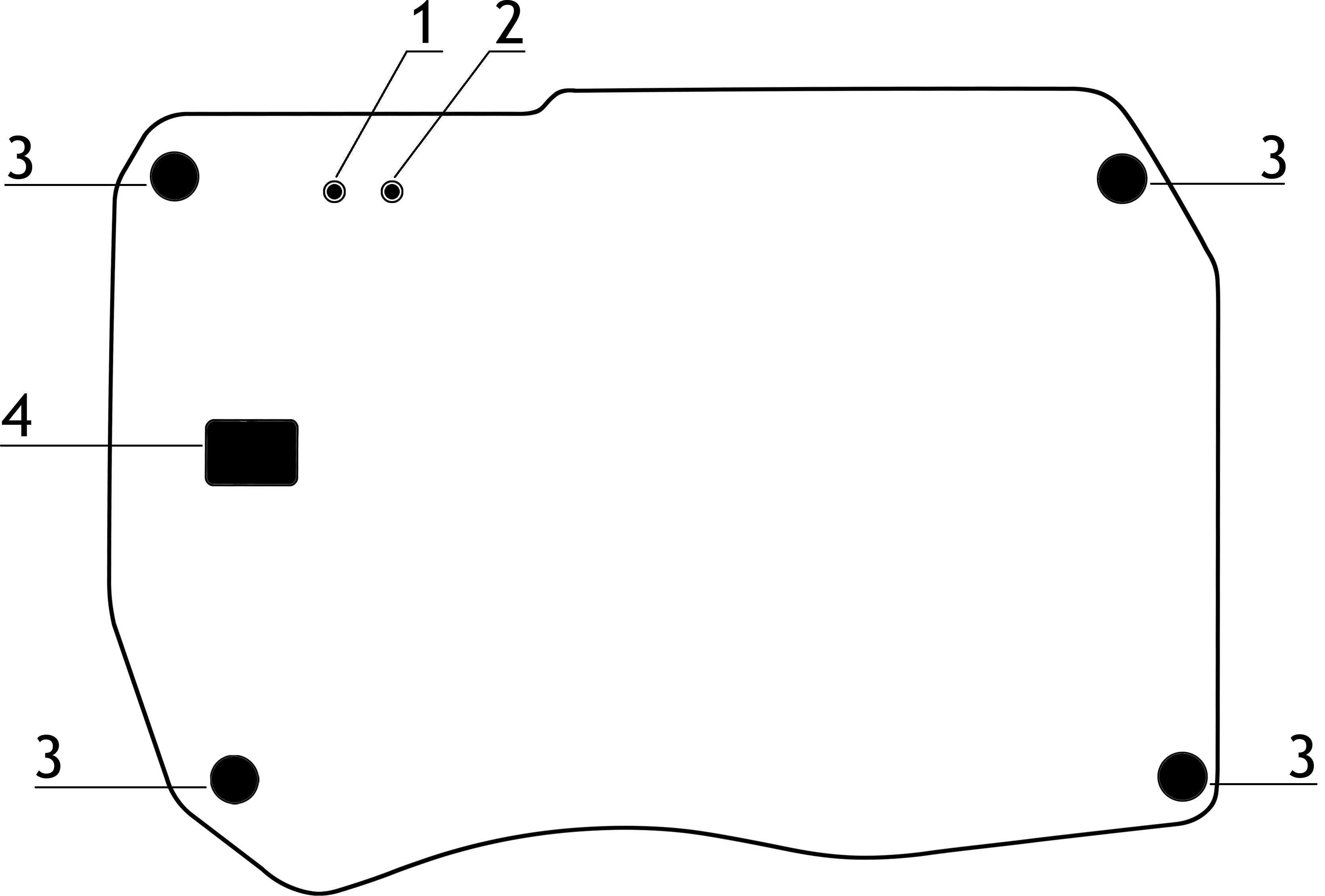
- BOOT button
- RESET button
- Silicone feet
- Service window for disassembling the keypad case
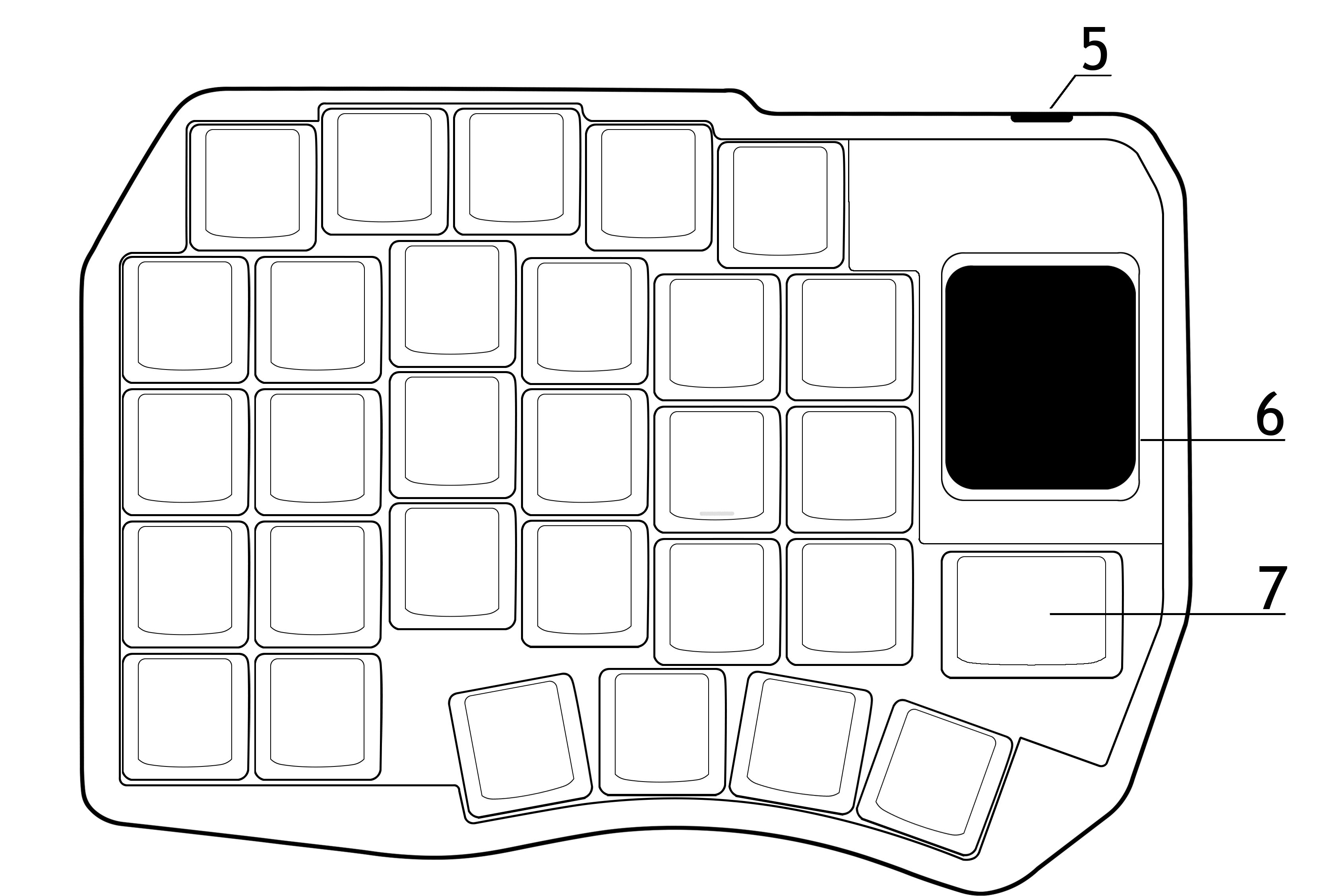
- USB-C port
- Display
- Slot for installing an MX switch or a hot-swap encoder
Connection
- The Space Mission 30 keypad works with devices running Windows, macOS, Linux, Android, and iOS
- The keypad connects via Plug and Play (PnP), so no additional driver installation is required
- When connecting to a device, make sure the USB-C cable is firmly inserted into the keypad’s port
Keypad setup
Layer setup (layouts) in Vial
Layers let you change the keypad’s functionality depending on which layer is currently active
Assigning keys to switch layers (layers)
- Install and open Vial or use the web version, then connect the keypad
You can view each available layer by clicking its number at the top of the interface. Layer 0 is your base/main layer
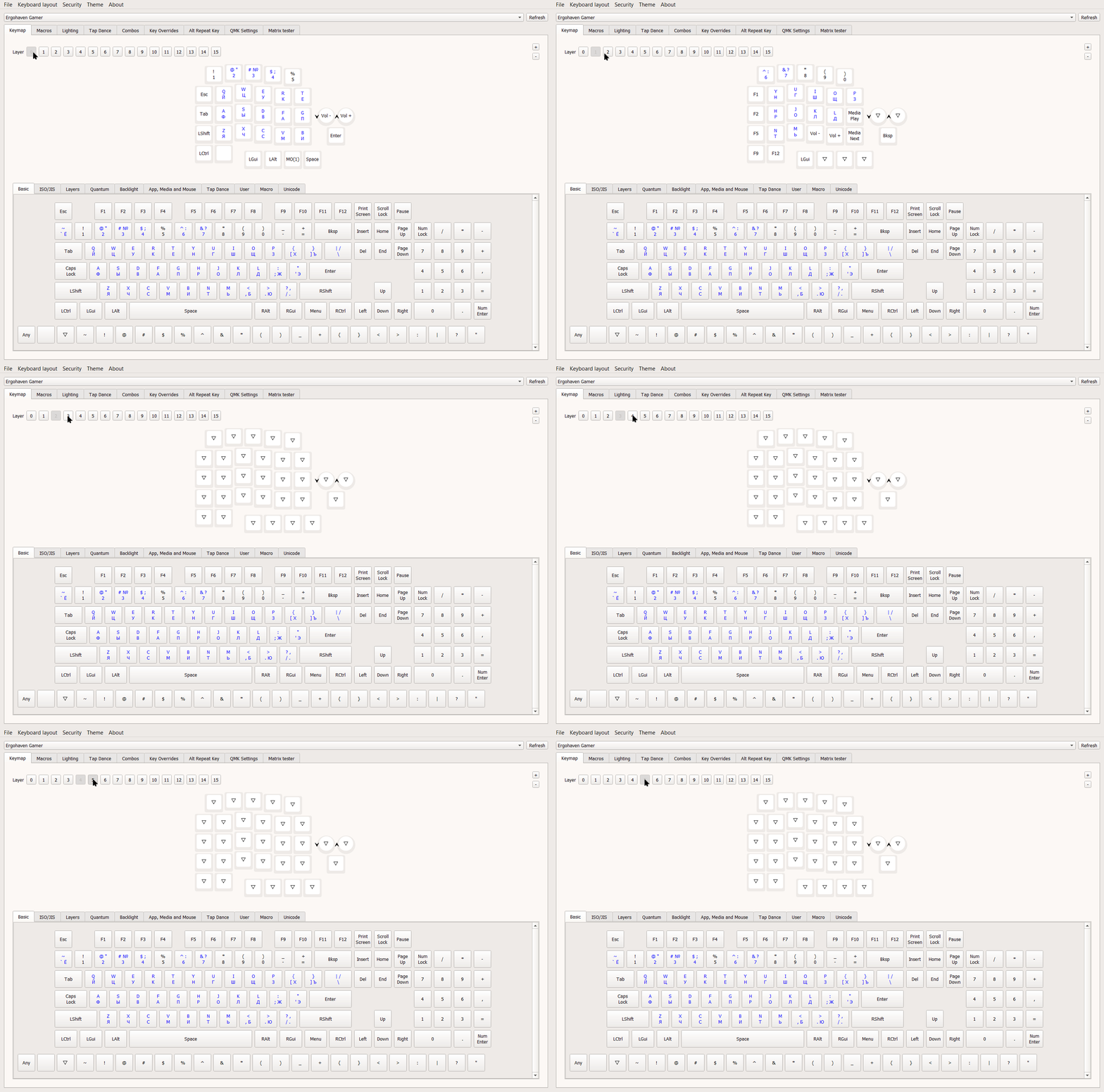
- Choose the layer from which you will activate your future layer
By default you have the base Layer 0 and the additional Layer 1, which is activated by holding MO(1). In this example we will set up switching from the base Layer 0
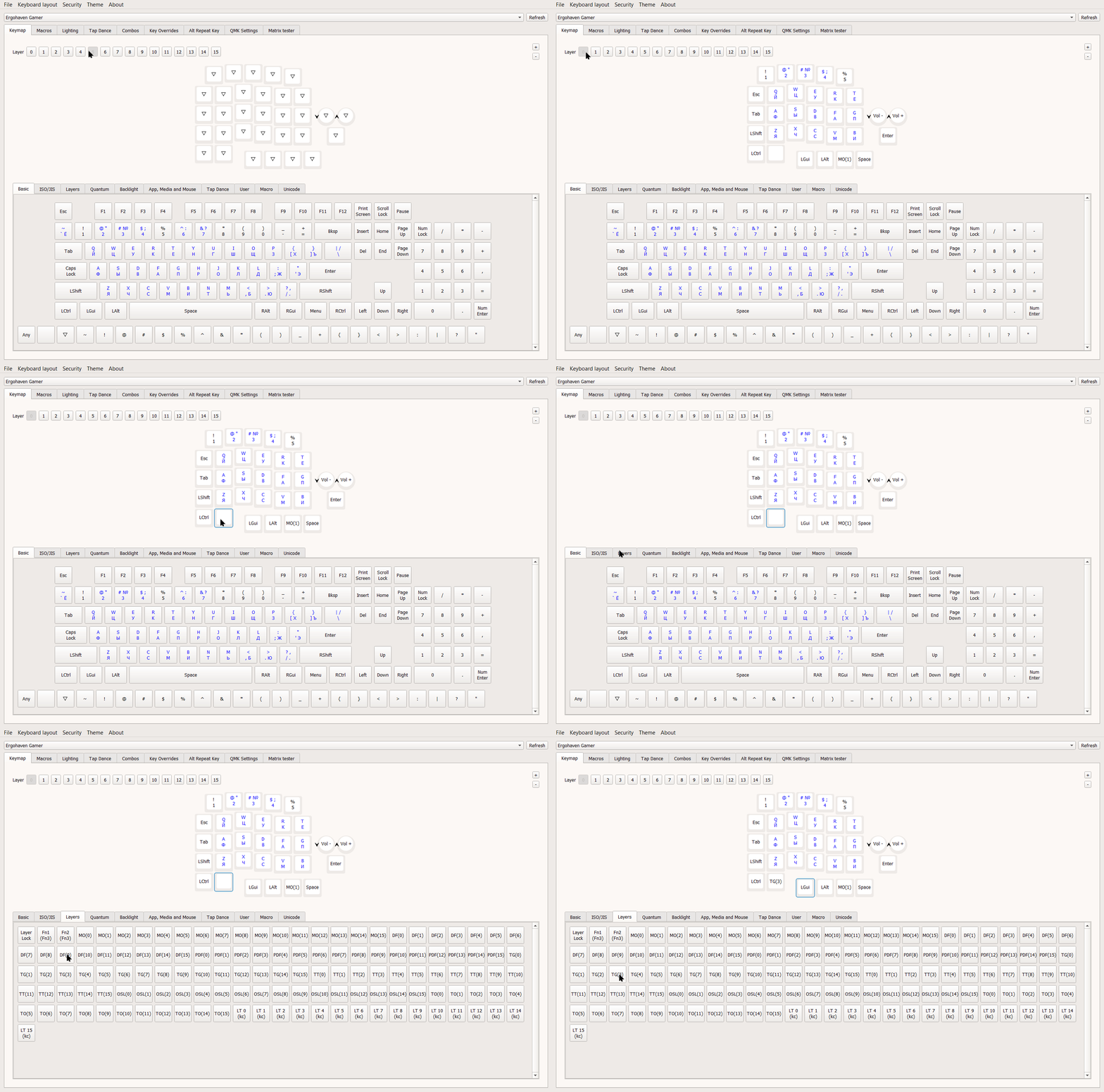
- Select the key that will activate your layer, then open the layer tab in the bottom menu
Layer switching can be done in several ways. Open the layer tab in the bottom menu to see all the different options
- Choose the activation method you want and the layer number to use
In this example we will use TG(*), which toggles a layer on if it is off, and off if it is on. You can read more about the other layer switching methods in our article. Since we already have 2 layers by default, we will configure Layer 3 for a new layout, so we will choose TG(3), where the number in parentheses is the layer being toggled
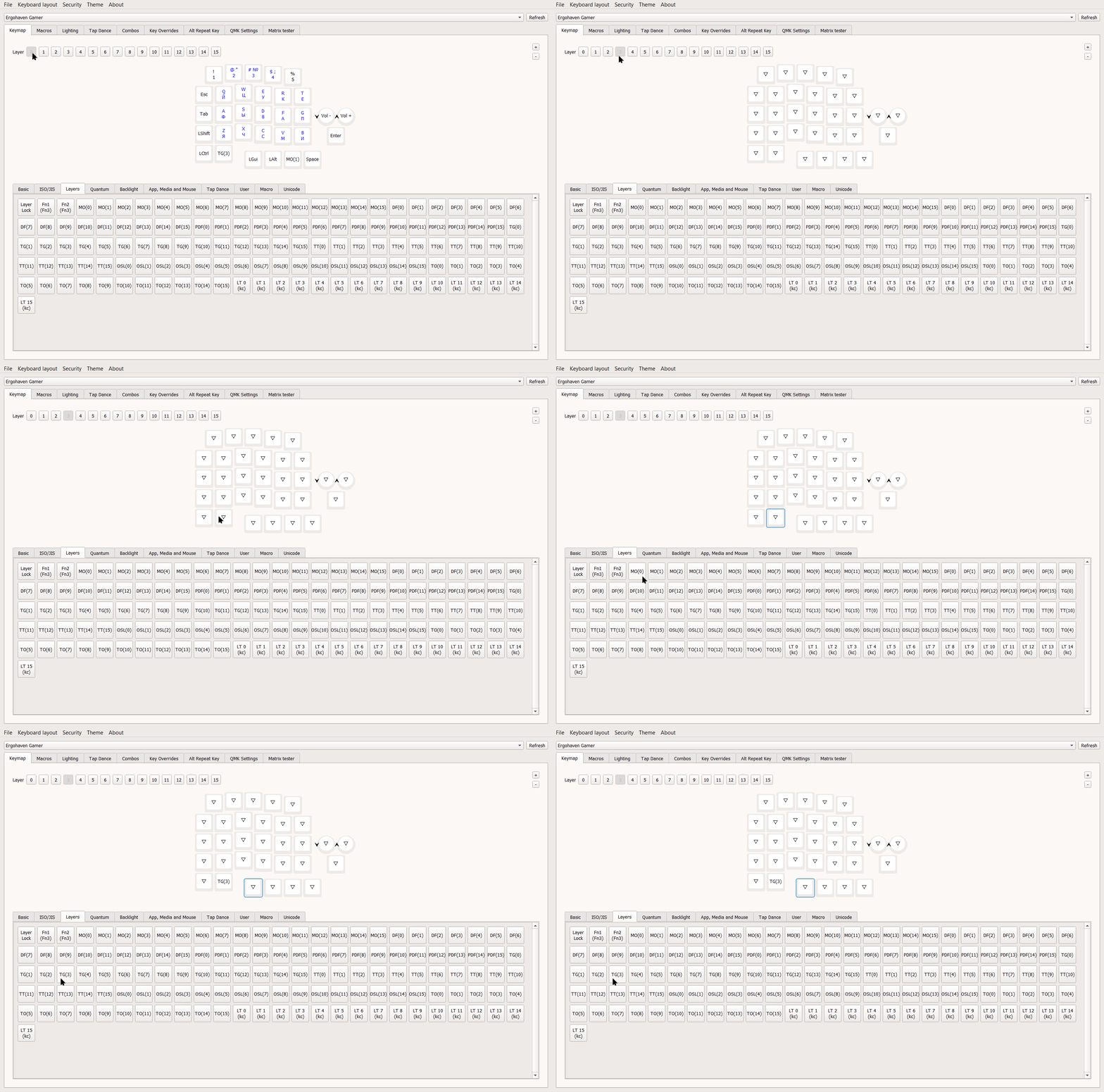
- Select the layer you want to edit and assign keys/macros to the buttons you need
Since we are creating our own Layer 3, we will choose Layer 3 at the top of the interface. First, assign a key to deactivate our layer and return to the base Layer 0. To do this, select the same key on the layout and click TG(3) again in the Layers tab
As an example, we will assign arrow keys to the W, A, S, D positions. On Layer 3, select each key position in the layout one by one and click the corresponding keys in the Basic tab
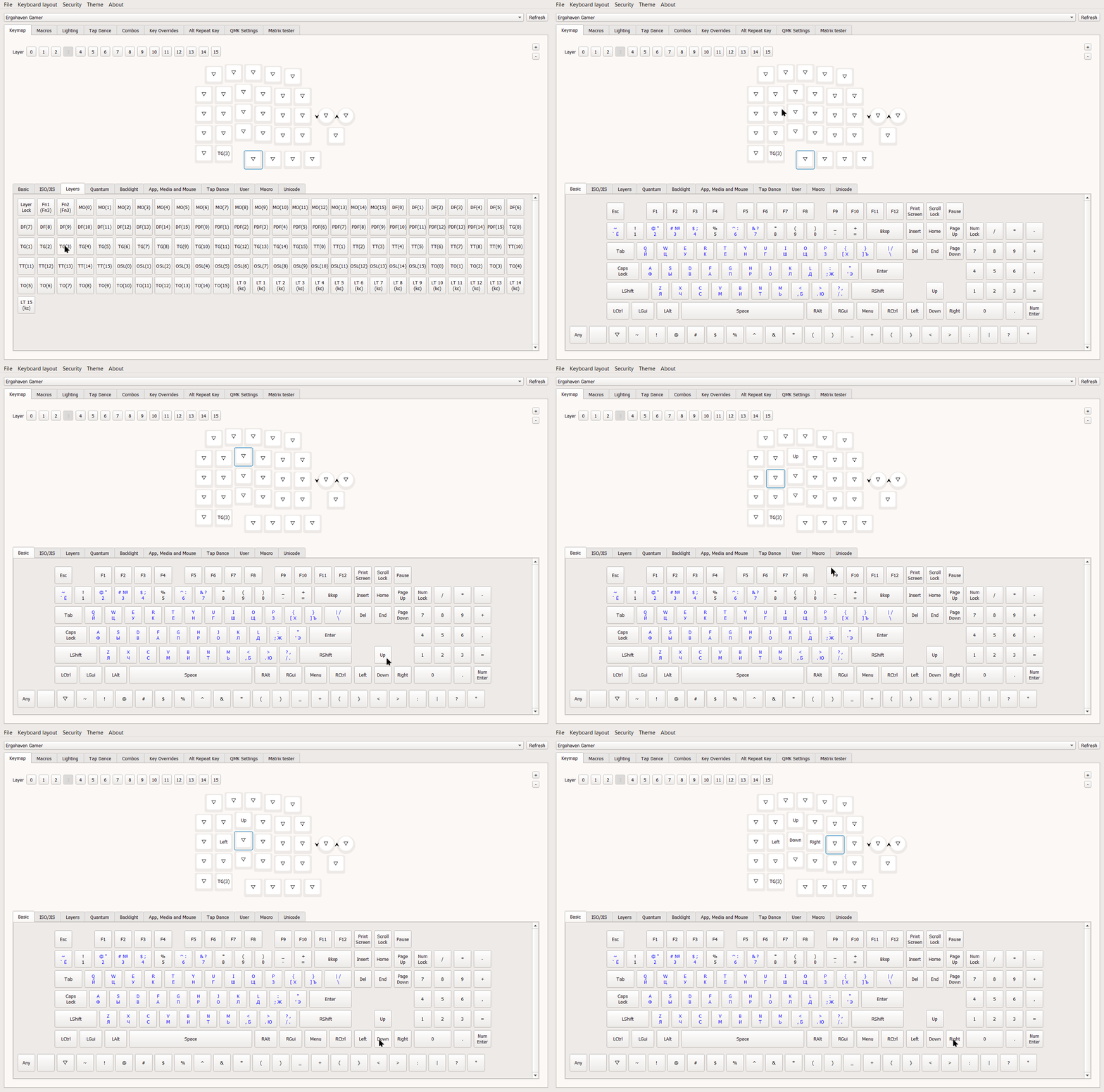
P.S. The triangle symbol means transparent. This means that pressing a key with a triangle will perform the same action as the layer below it. In our example, below Layer 3 there is the additional Layer 2, so the keys with the triangle symbol will trigger the corresponding actions from that additional layer
Layer use examples:
- A separate layer for layouts that fit different game genres
- A separate layer for macros that help you quickly send messages in in-game chats or use combos
Creating macros in Vial
Macros allow you to send multiple key presses by pressing only one key. They can do anything you want: type whole sentences or repeat routine in-game actions
Macros configuration for creating combos
Let’s create a macro that presses A, D, S, S, J in sequence
- Open Vial or use the web version, then in the top menu go to the Macros tab
In this tab you can view each available macro by clicking its number at the top of the interface, and up to 109 macros can be created
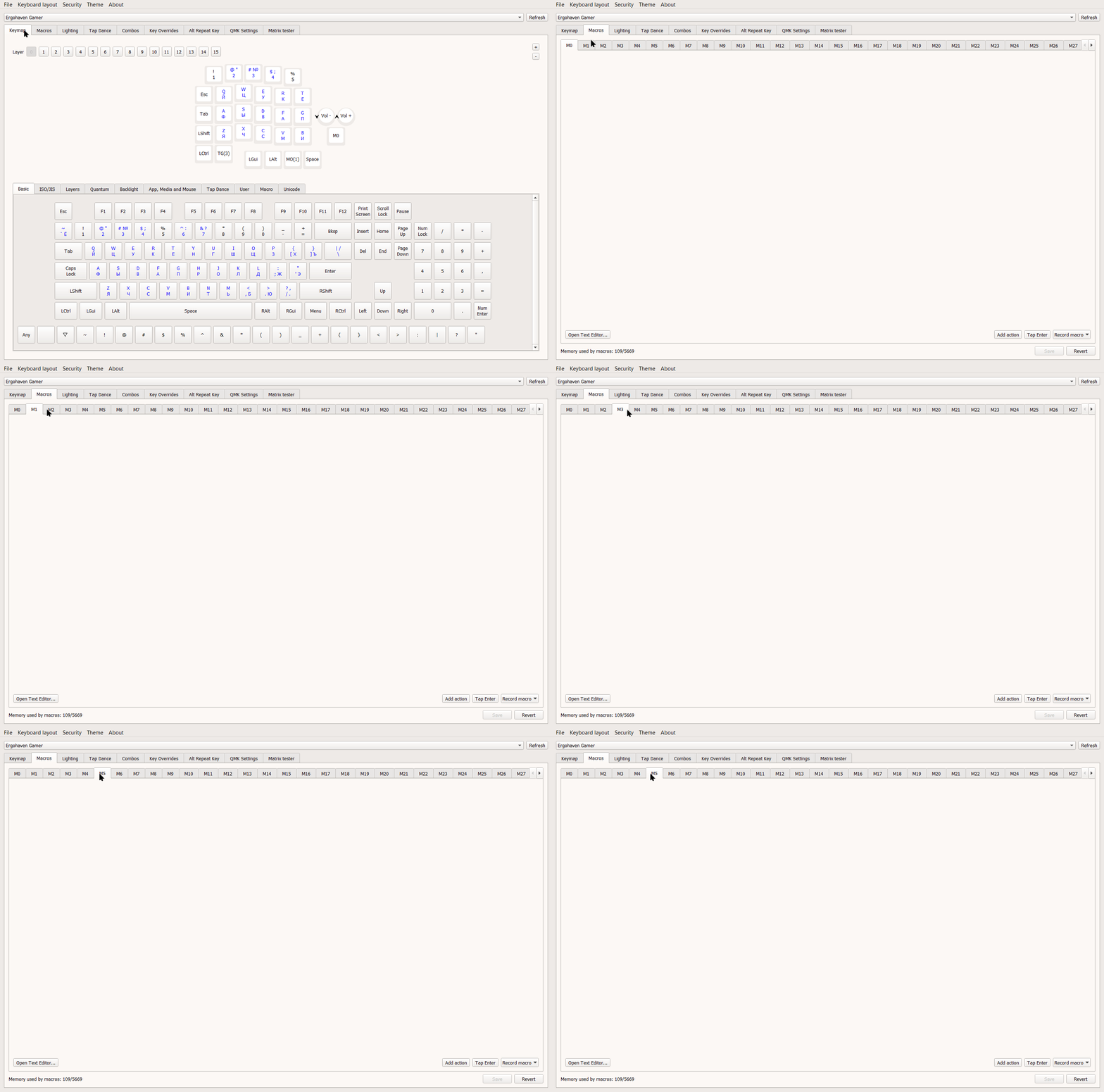
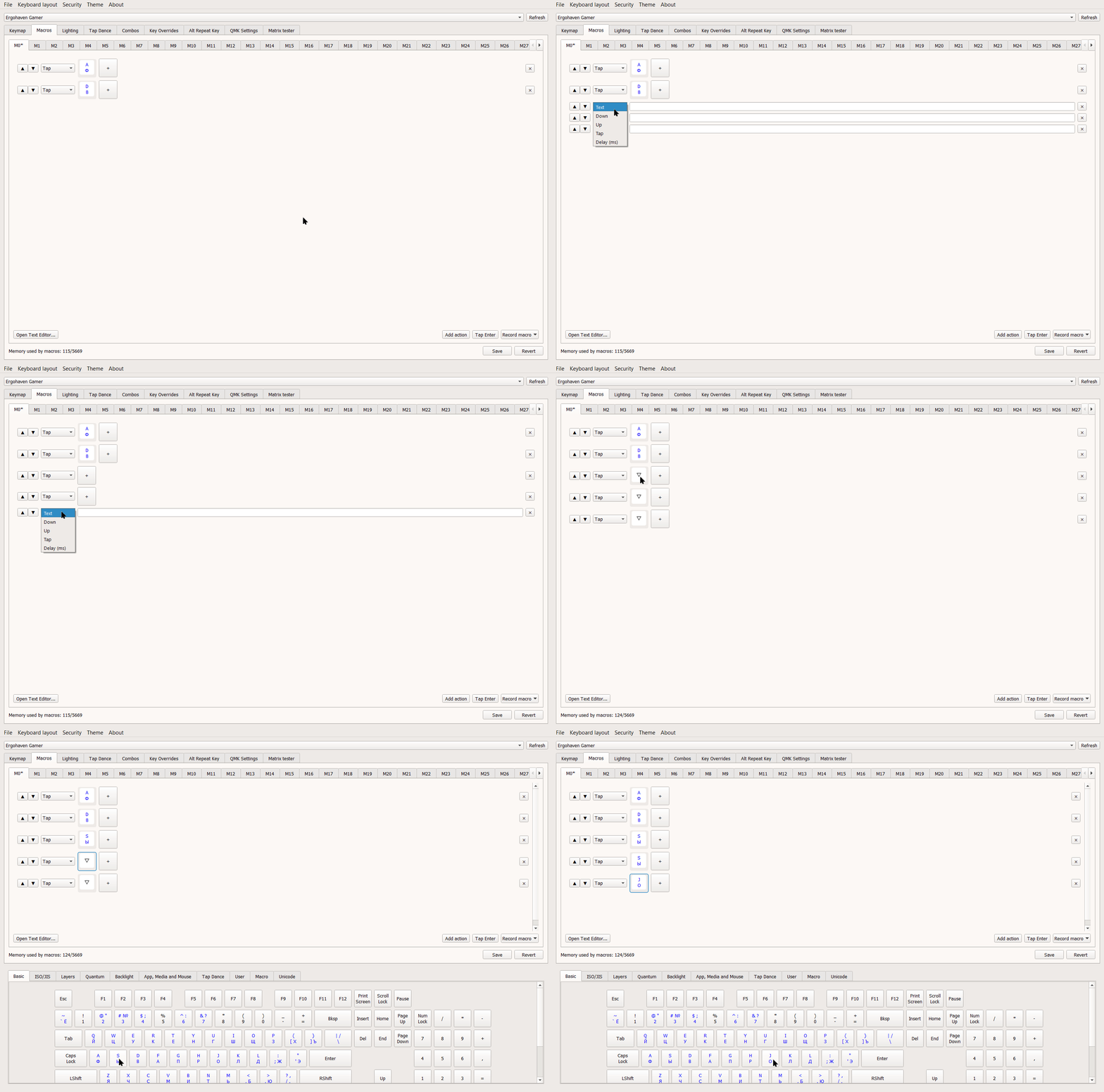
- Choose a macro number, then click Add action in the bottom-right corner
In this example we will create macro M0 using the most common method, Add action, which manually adds an action to the list
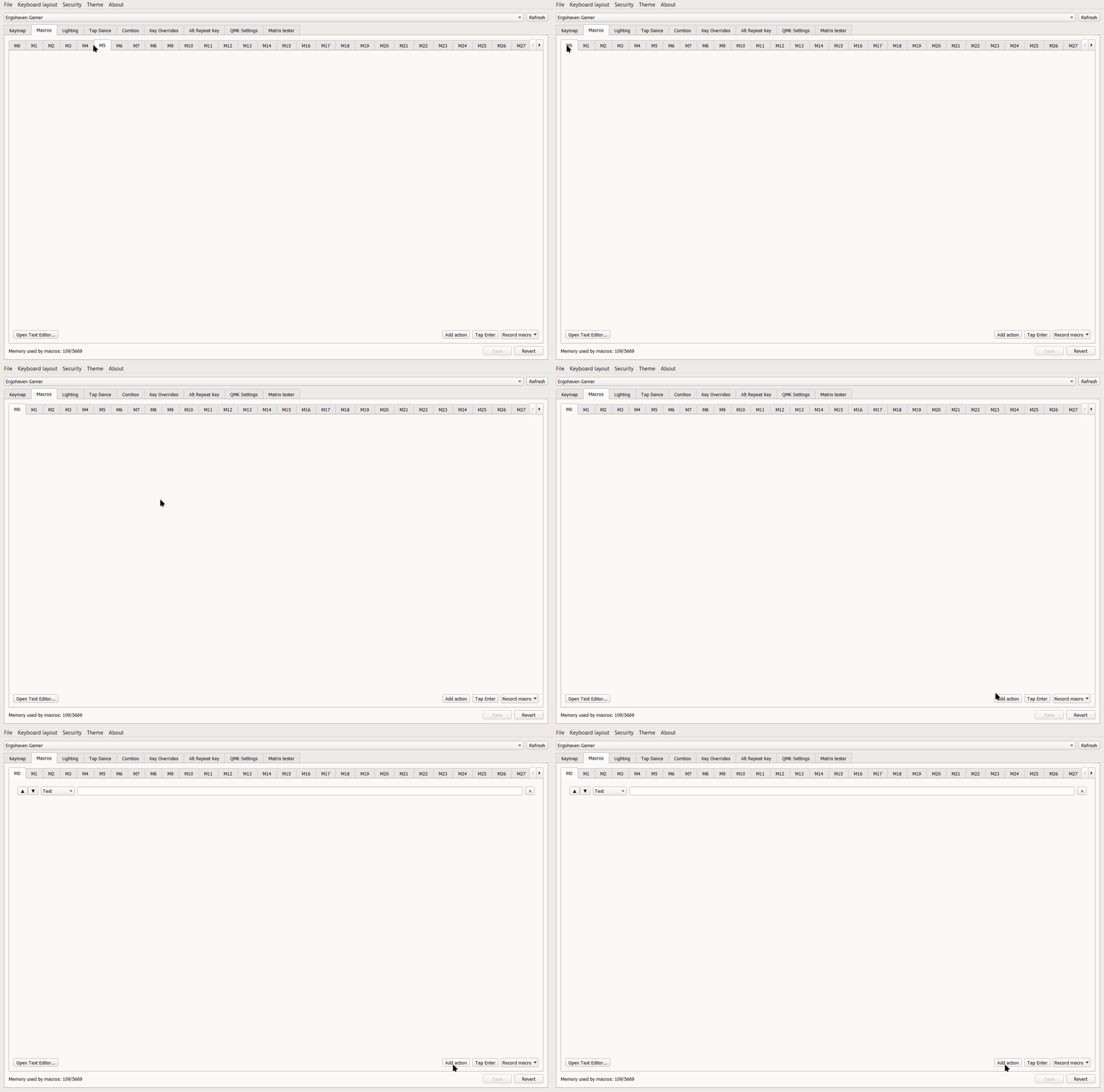
You can also use Tap Enter, which adds an Enter key press right away, or Record macro, which records a macro directly from the keyboard
- Select the needed action from the dropdown and assign keys for that action
Choose the Tap action, which sends a single key press or a key combination, click +, and assign the A key
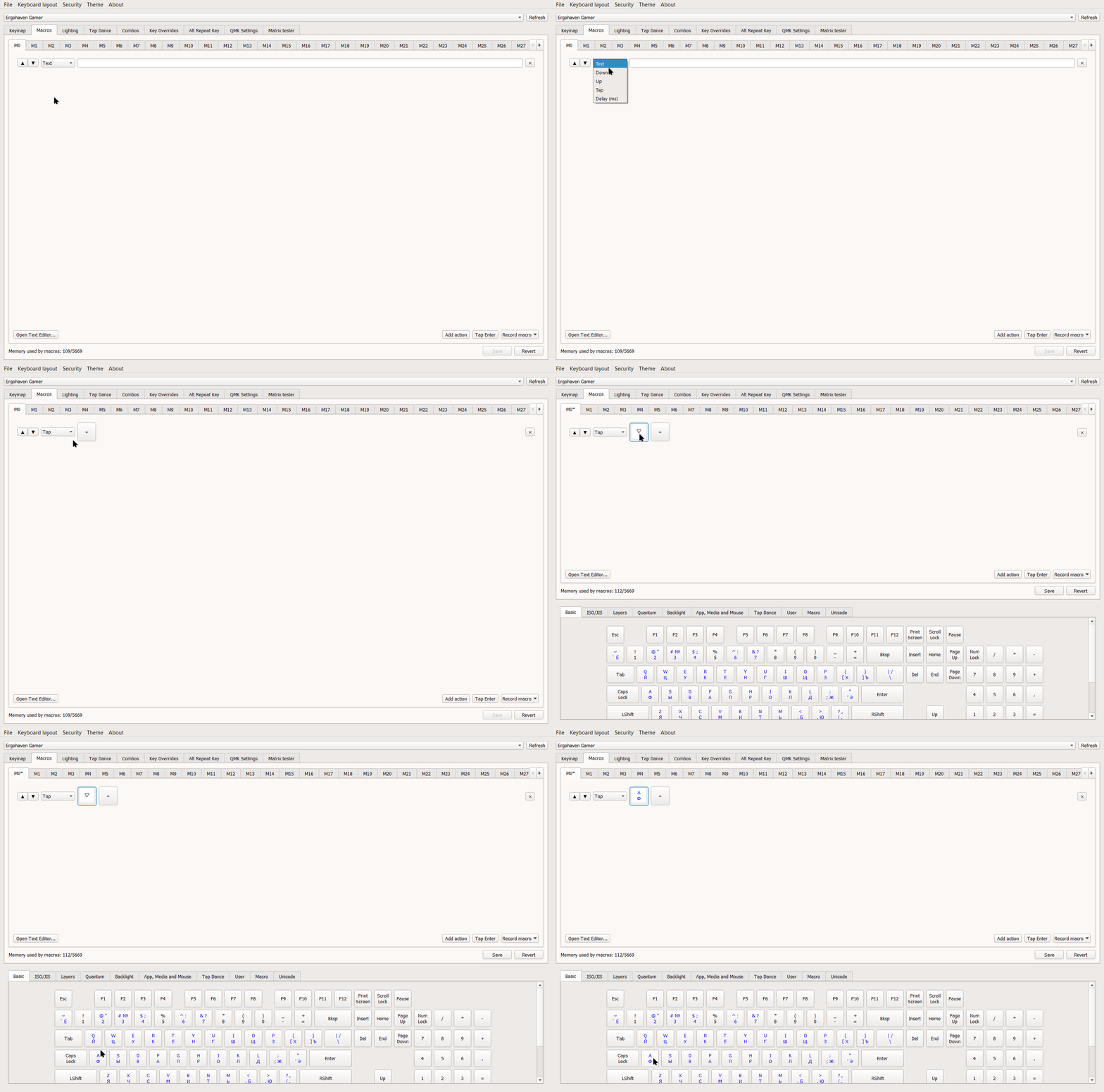
Other available actions are Text for typing text templates, code snippets, and more, Down for pressing and holding a key or a combination, Up for releasing a key or a combination, and Delay(ms) for adding a delay in milliseconds between macro actions
- Add the next action to the macro the same way as in the previous step
Click Add action again, choose Tap, click +, and assign a key, but this time choose D
Macro actions run from top to bottom, so keep that in mind when creating macros. If you need to change the order of actions, use the up and down arrow buttons on the left side of the action you want to move
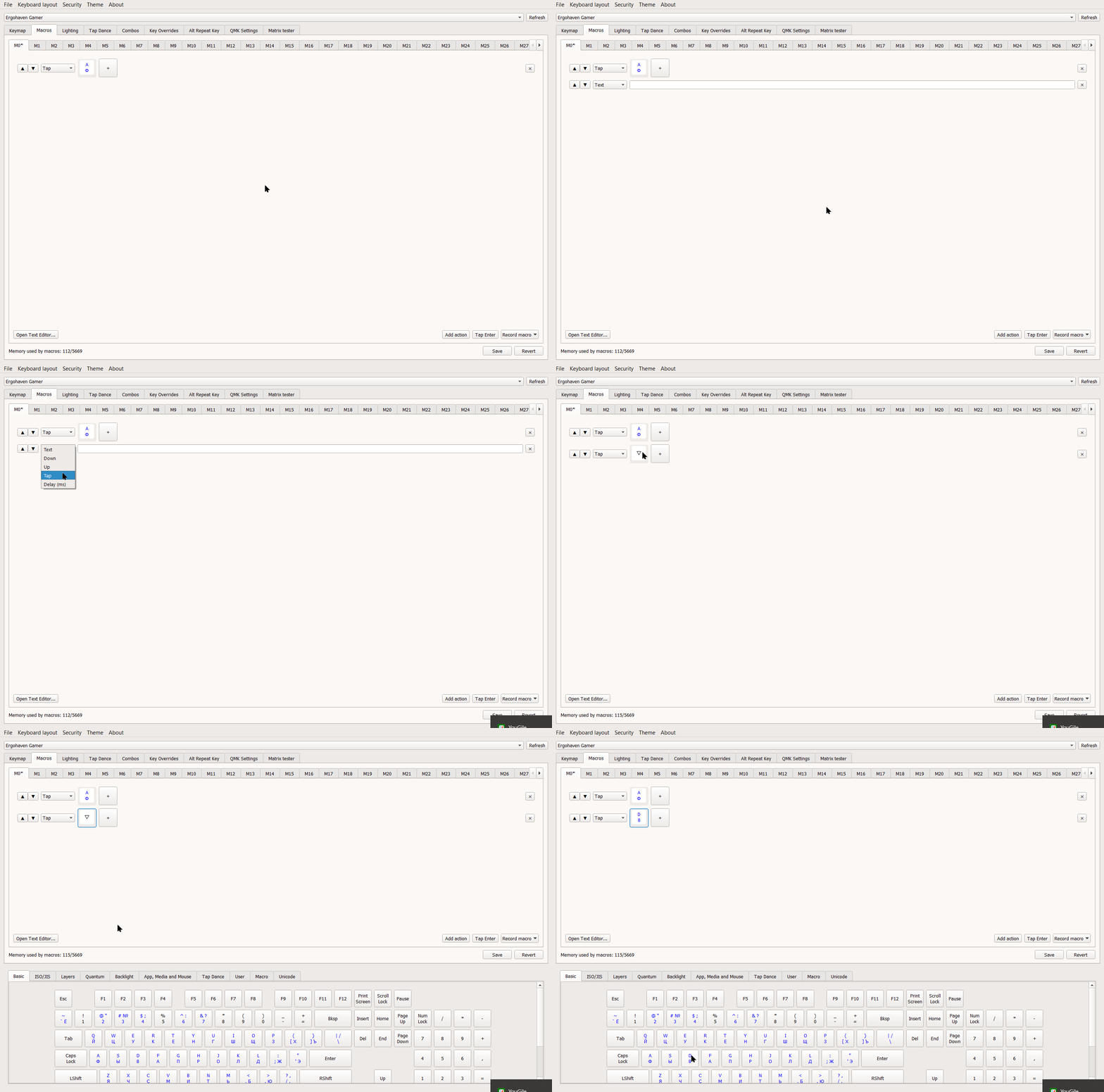
- Add the remaining actions to the macro and save the result
Just like in step 3, add key presses S, S, J to our macro
When you finish creating the macro, click Save in the bottom-right corner
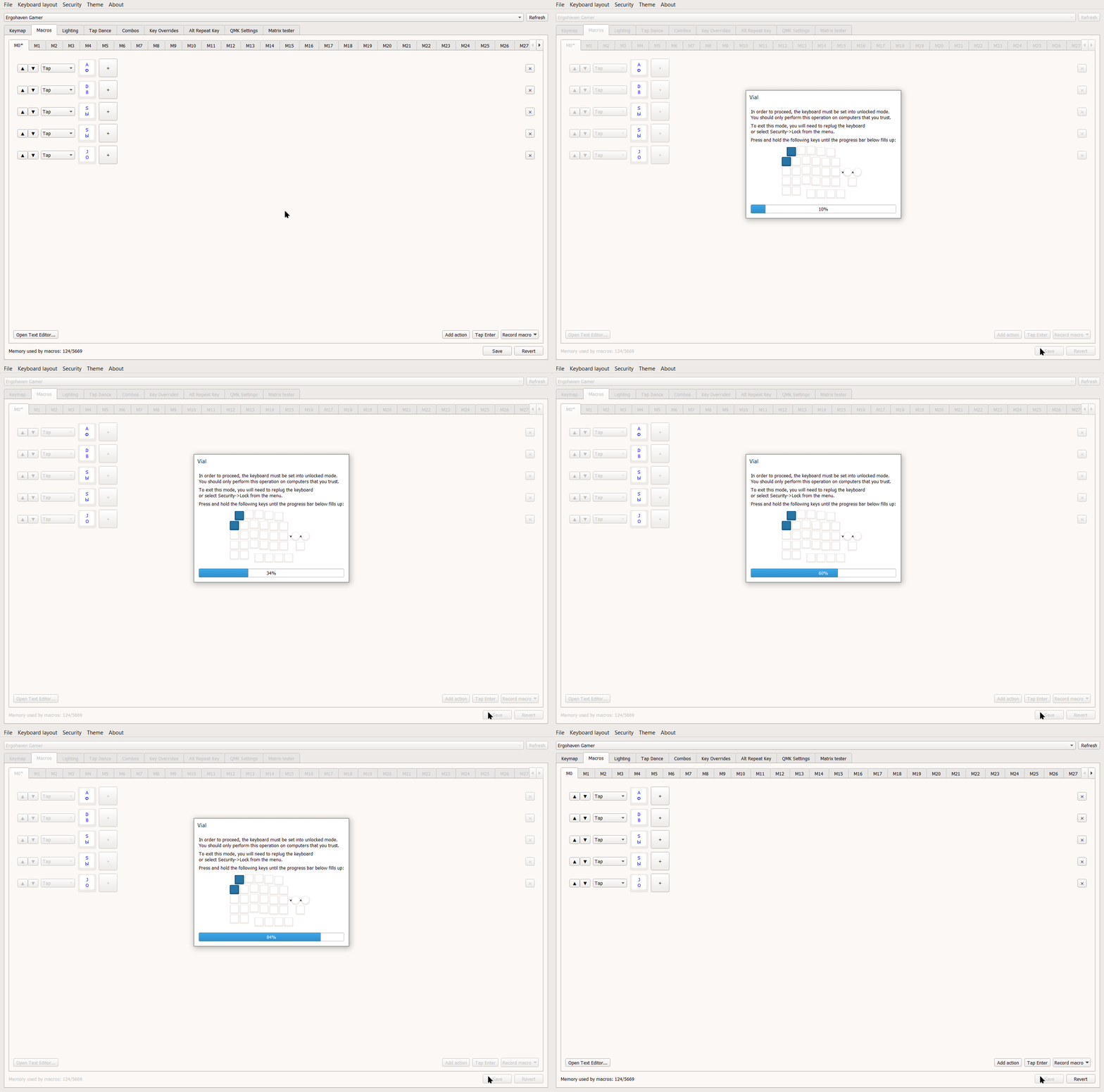
Macros are saved to the keyboard’s internal memory and will also work on another PC. When saving a macro, Vial will ask you to unlock the keyboard by holding two keys in the top-left corner
- Add the created macro key to the layout
In this example, assign our M0 macro to a key on Layer 3. Go to the Keymap tab in the top menu, select Layer 3, select the key you want on the layout, and in the bottom Macros tab click M0
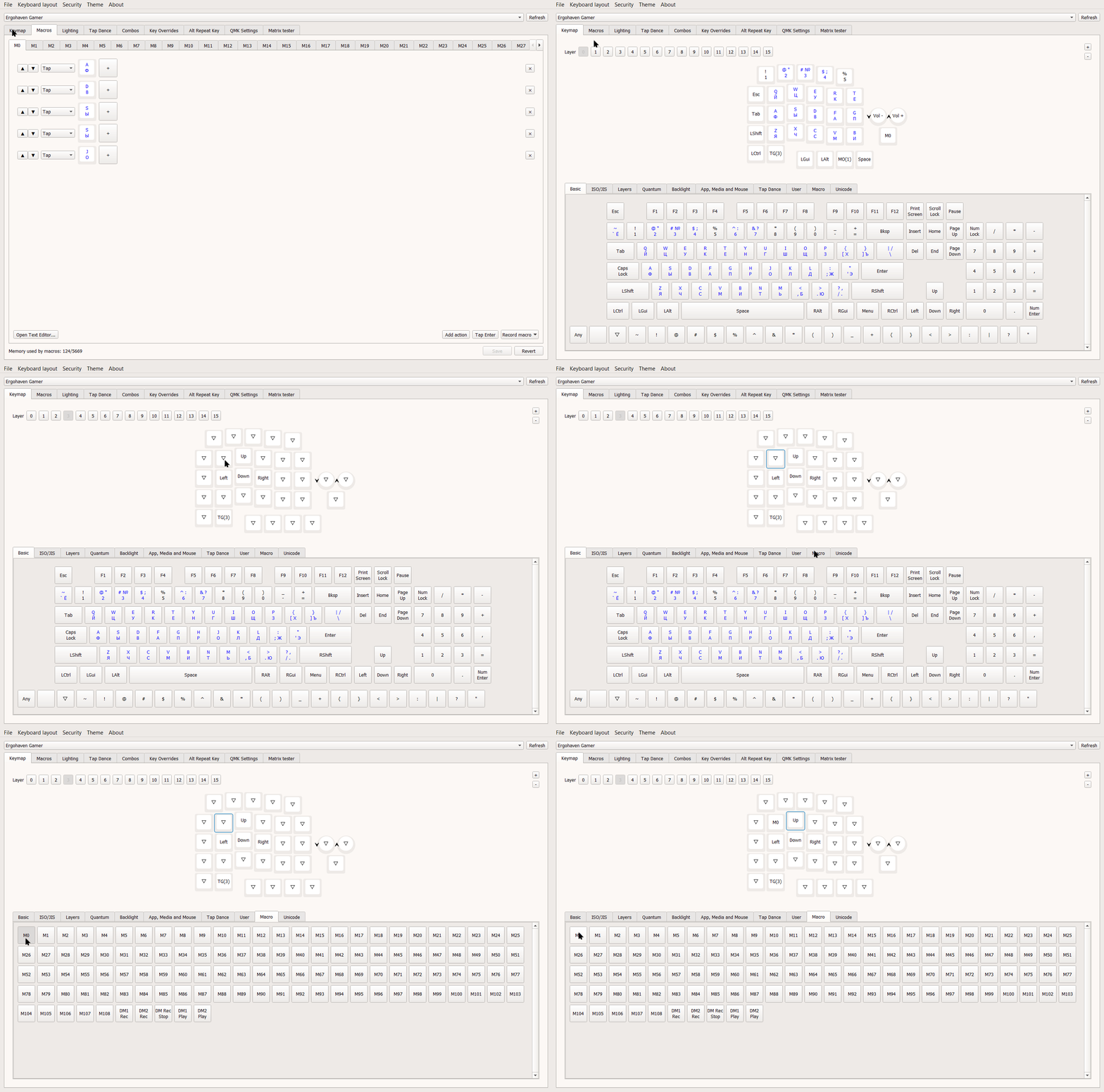
Choose any convenient layer and key position for triggering the macro; read above to learn how to create layers
Macros configuration for typing text
For example, let’s create a macro that opens the in-game chat in Counter-Strike 1.6, types "Hello!", and sends the message
To implement this example, you need to understand the sequence of actions required to send a message to the global chat in CS 1.6. By default, you need to open the global chat window with Y, type the message, and press Enter to send it
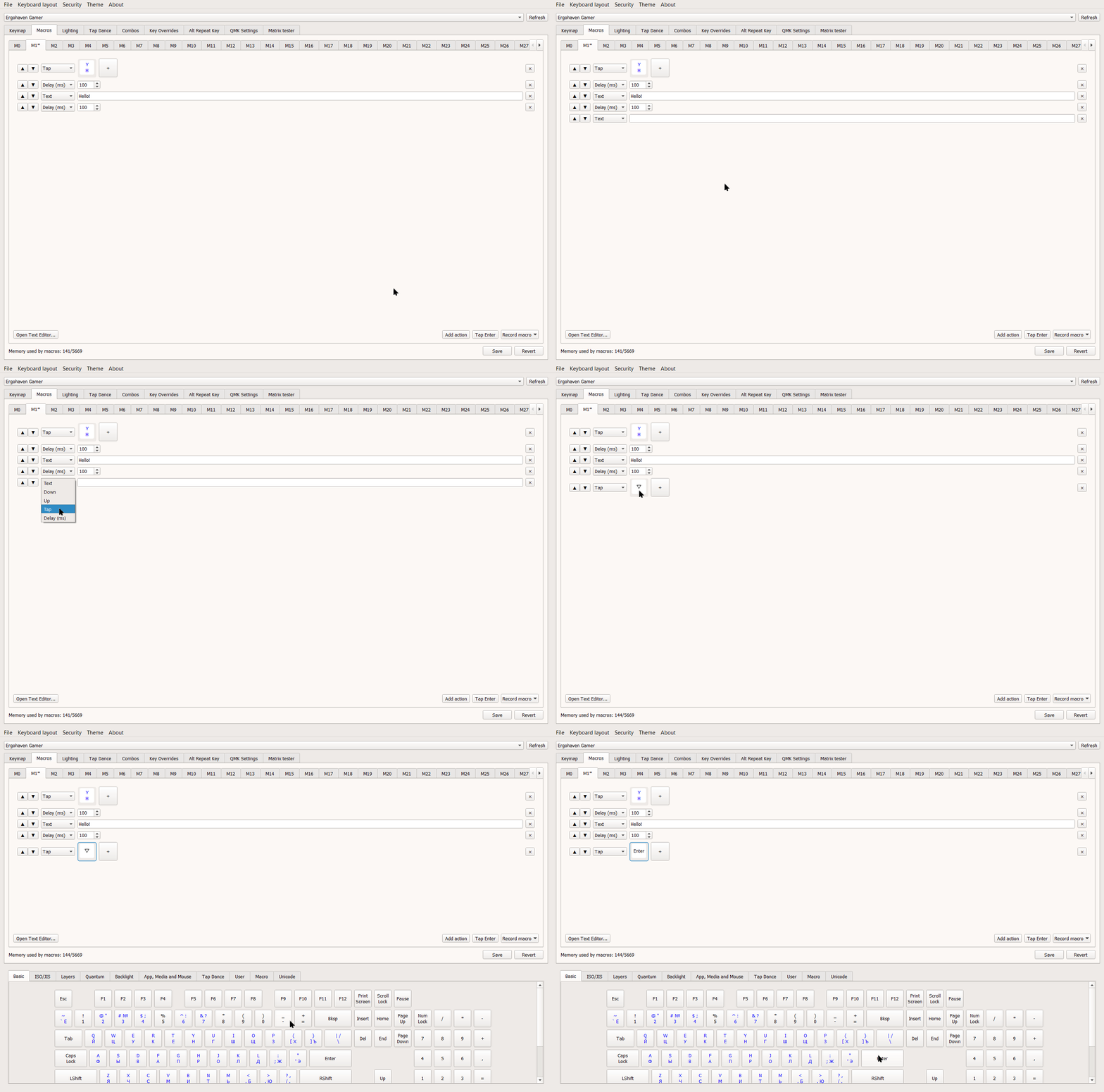
- Open Vial or use the web version, then in the top menu go to the Macros tab, choose a macro number, and click Add action in the bottom-right corner
In this example we will create macro M1 using Add action
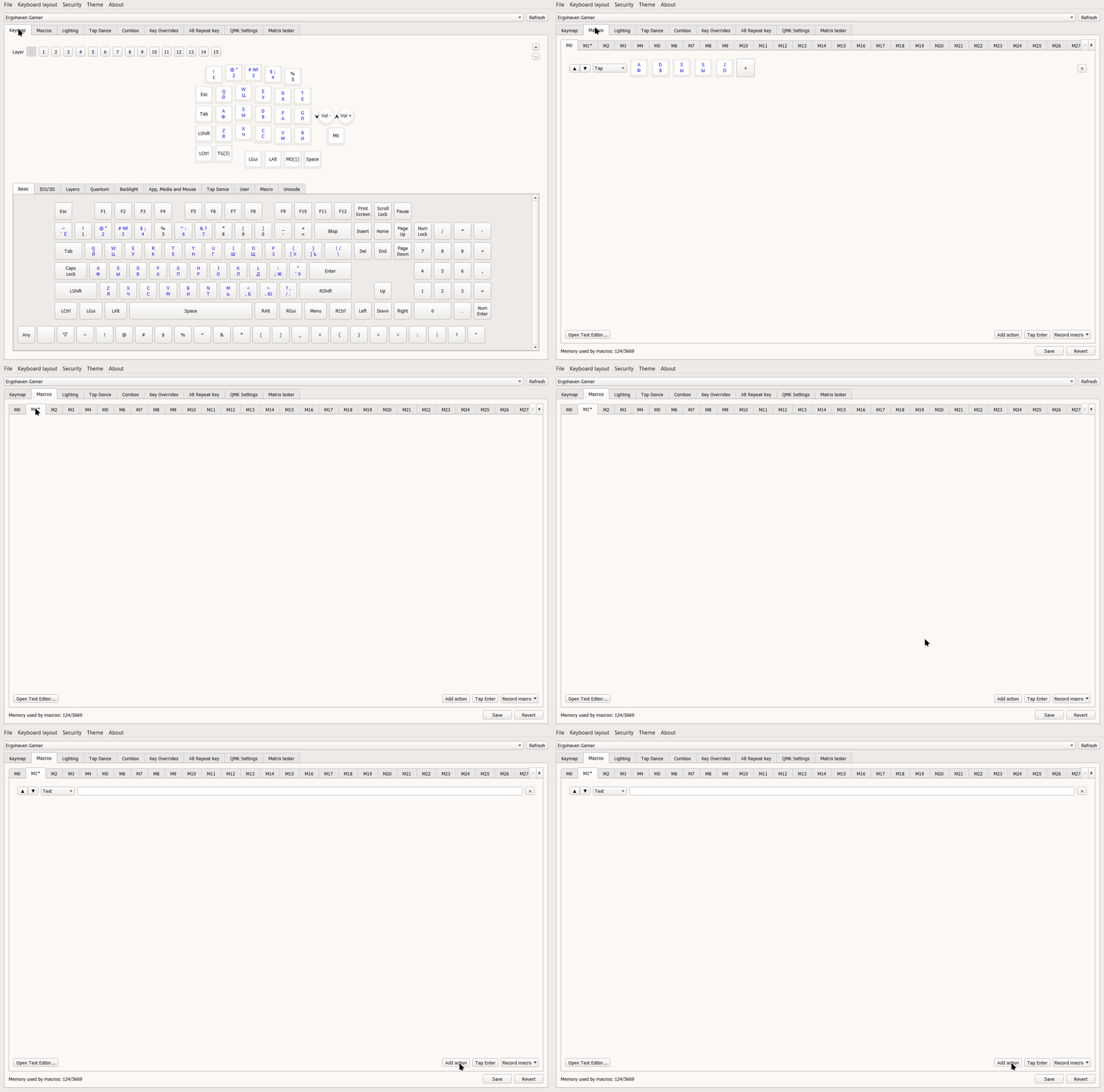
- Add the action that opens the in-game chat
Choose Tap, click +, and assign the Y key
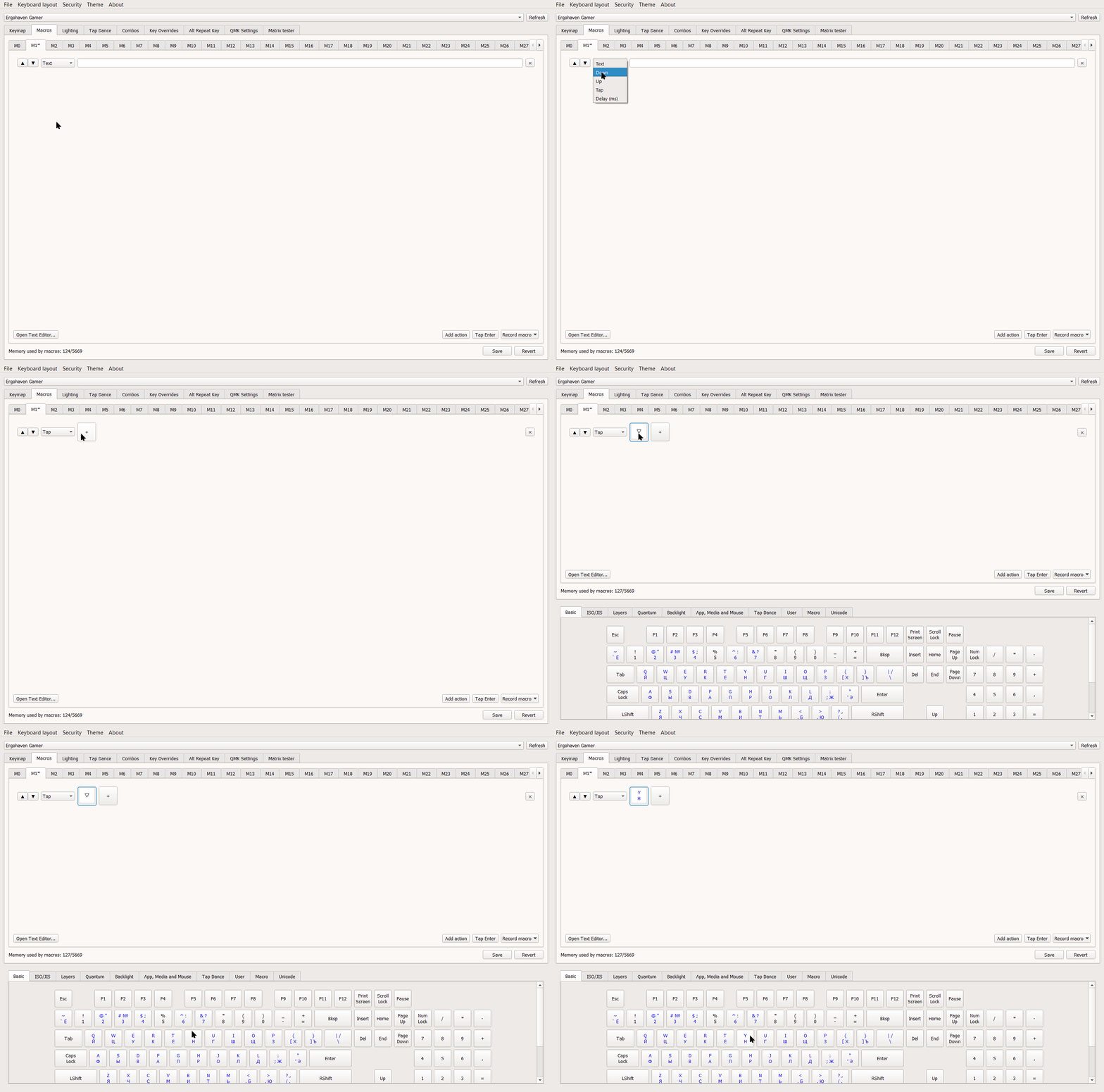
- Add a delay between opening the chat and typing the message, otherwise the text may not type correctly
Click Add action again, choose Delay (ms), and set the delay to 100 ms
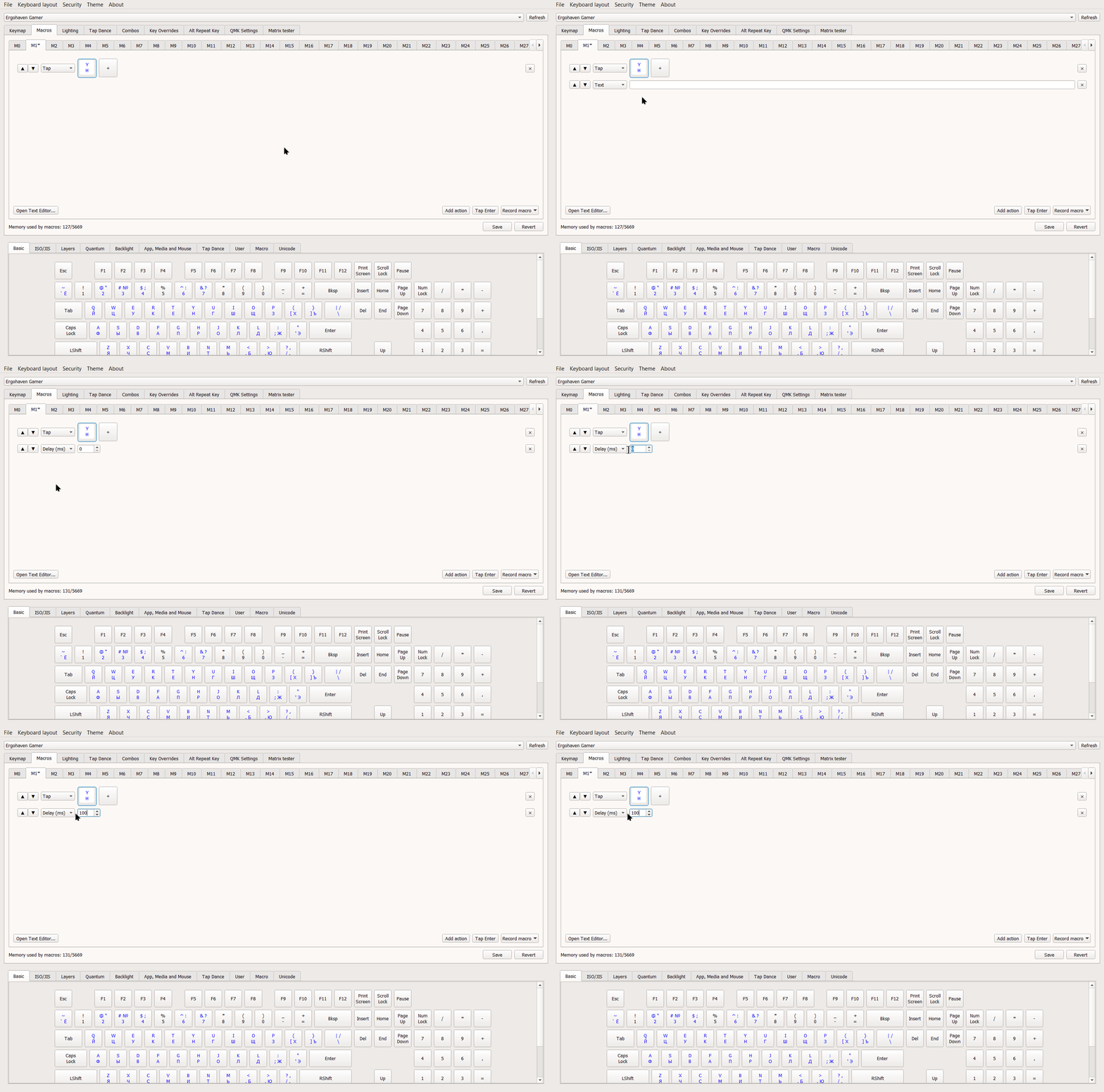
Macro actions run from top to bottom, so keep that in mind when creating macros. If you need to change the order of actions, use the up and down arrow buttons on the left side of the action you want to move
- Add the action that types the message text
Click Add action, choose Text, and enter Hello! in the text field on the right
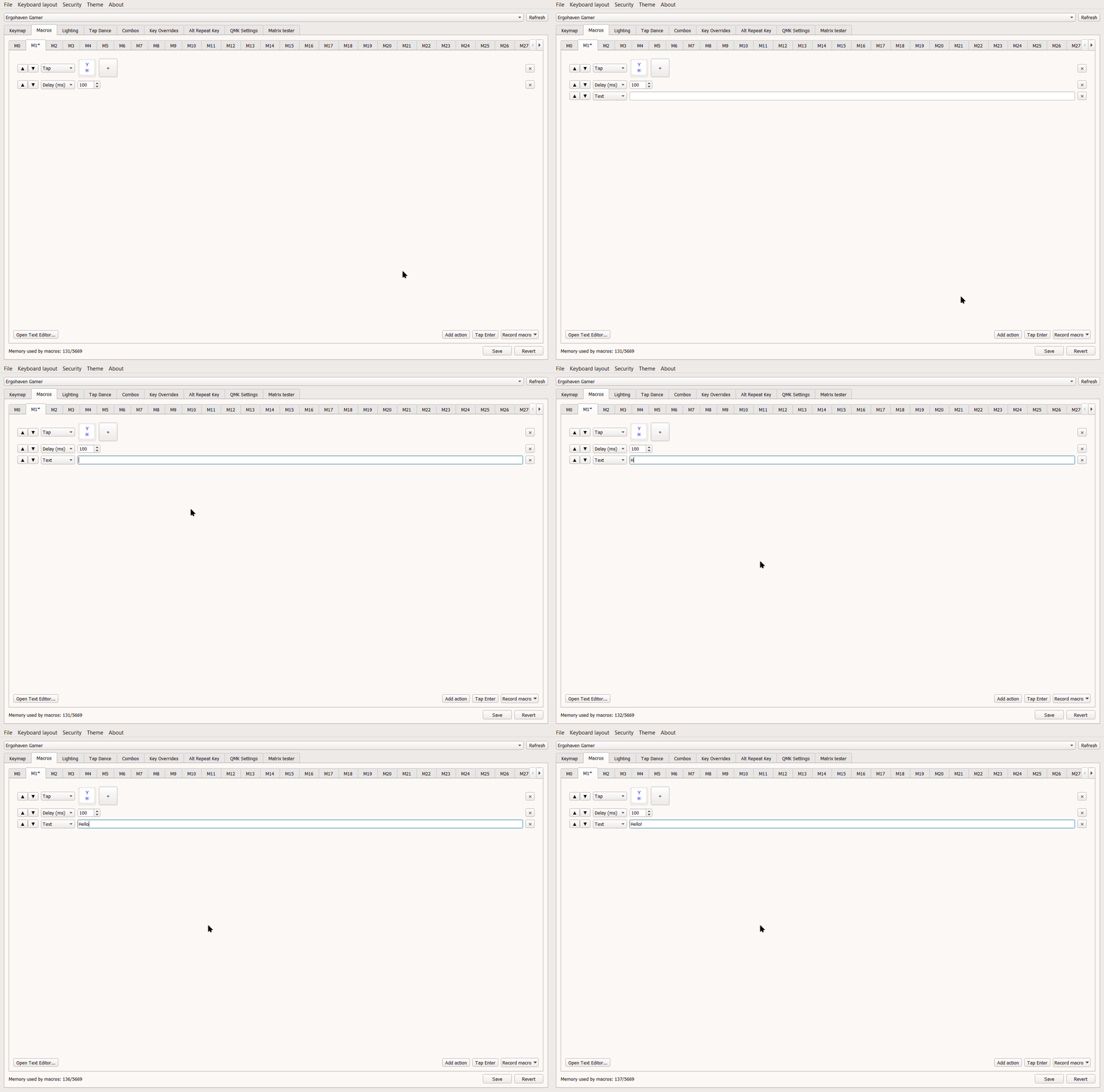
- Add a delay between typing the message and sending it to chat
Click Add action, choose Delay (ms), and set the delay to 100 ms
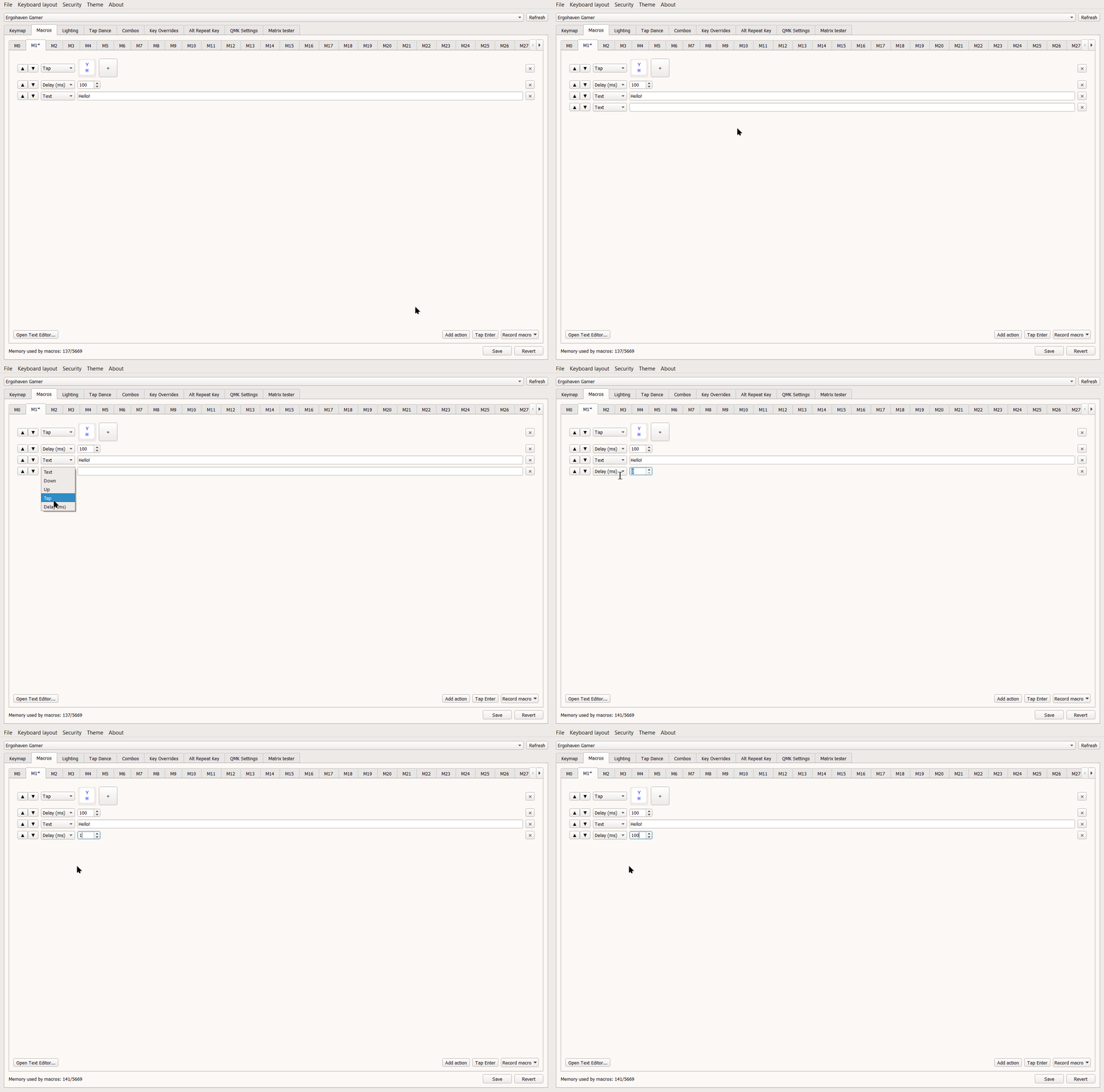
This delay is optional in this example, but for some other tasks it is better to use it for correct macro timing
- Add the action that sends the message to in-game chat and save the macro
Click Add action, choose Tap, click +, and assign Enter
When you finish creating the macro, click Save in the bottom-right corner
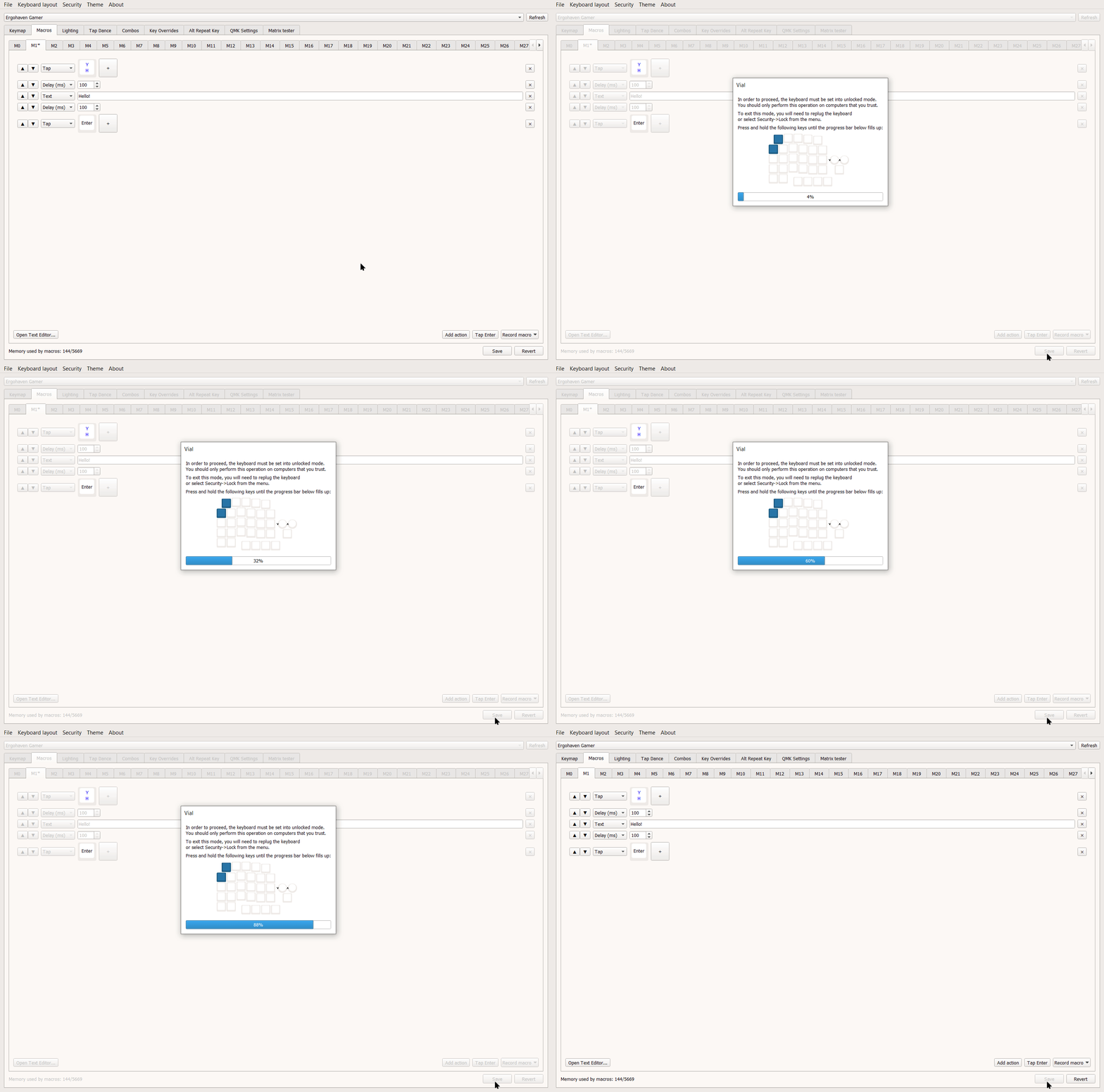
Macros are saved to the keyboard’s internal memory and will also work on another PC. When saving a macro, Vial will ask you to unlock the keyboard by holding two keys in the top-left corner
- Add the created macro key to the layout
In this example, assign our M1 macro to a key on Layer 3. Go to the Keymap tab in the top menu, select Layer 3, select the key you want on the layout, and in the bottom Macros tab click M1
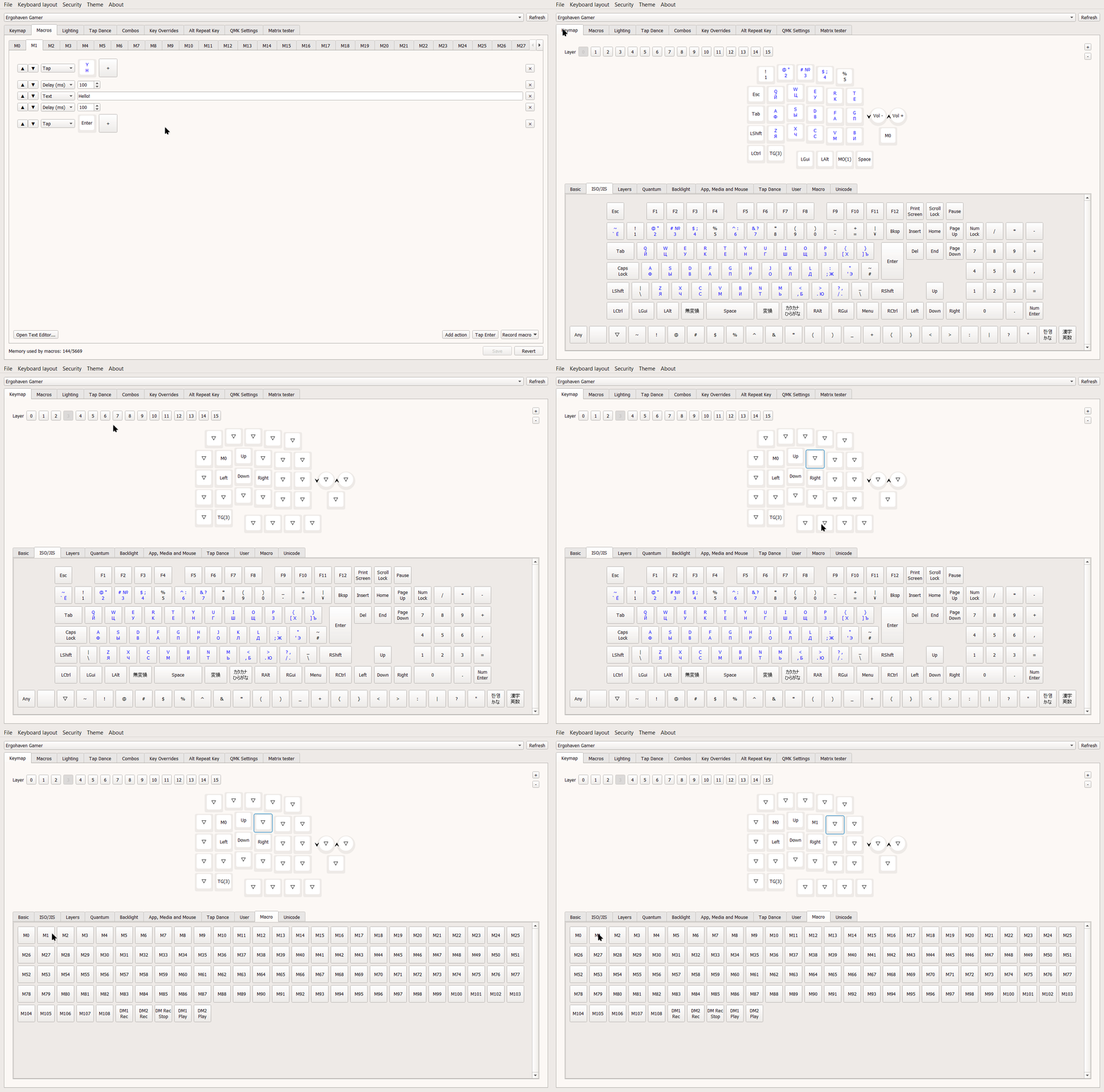
Choose any convenient layer and key position for triggering the macro; read above to learn how to create layers
More information about the Macros feature can be found in the official QMK documentation
RGB lighting setup in Vial
In Vial, the Lighting tab lets you customize the key backlight by changing the effect, color, brightness, and animation speed
RGB setup
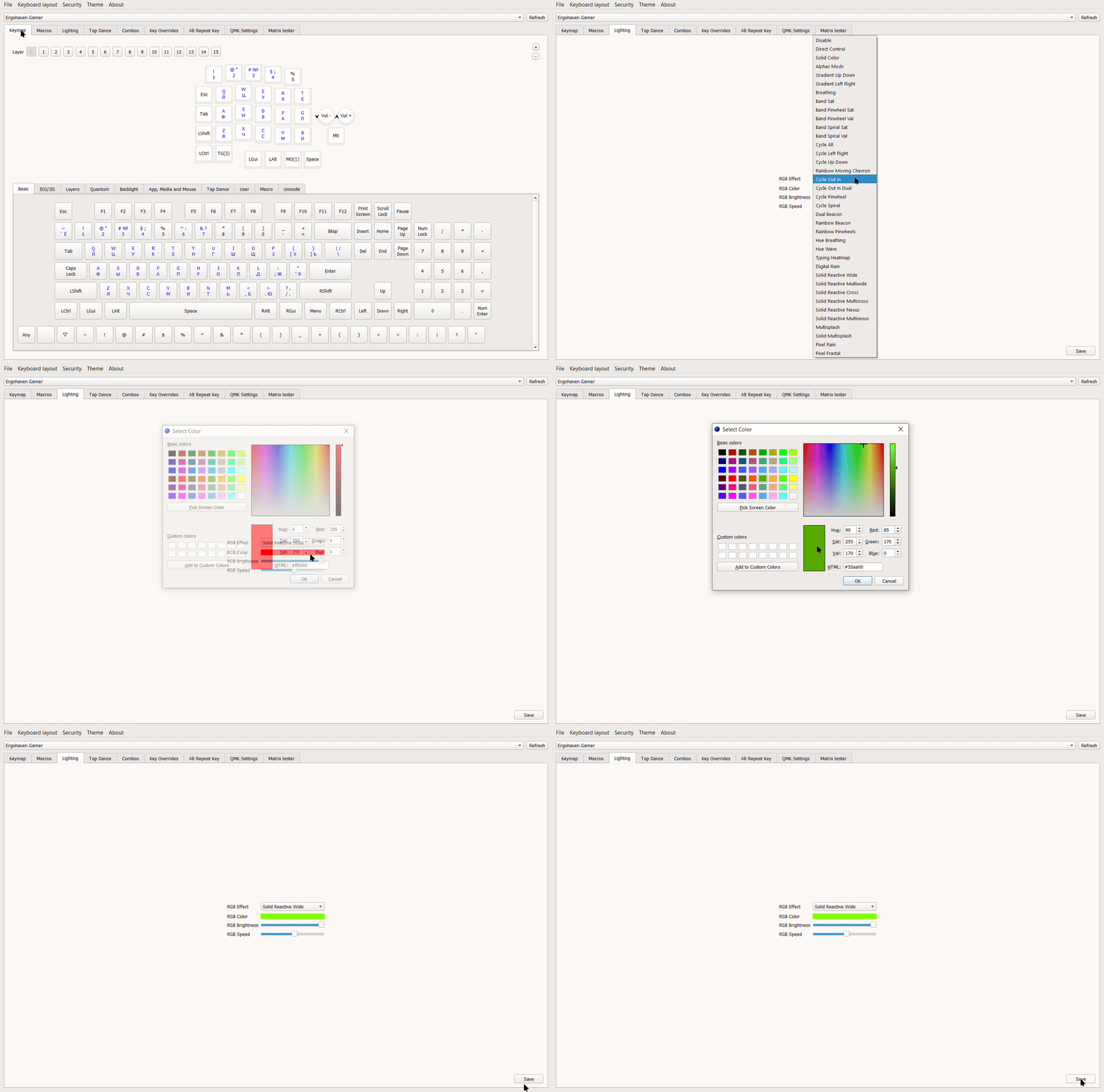
- RGB Effect — choose different animations or a static color
- RGB Color — adjust the backlight color
- RGB Brightness — adjust the backlight brightness
- RGB Speed — adjust the animation speed
After configuring all RGB lighting parameters, click Save in the bottom-right corner of Vial to save all changes
More about Vial features can be found in the article
Switch replacement / hot-swap encoder installation
Removing a switch
- Remove the keycap: use a switch puller or a dedicated keycap puller
- Remove the old switch: use a switch puller, grip the latches at the top and bottom of the switch, and gently pull upward until it comes out of the socket
Installing a new switch
- Install the new switch: make sure the contacts (pins) are straight and aligned with the holes on the PCB, then gently press it in until it clicks
- Put the keycap back on
Installing a hot-swap encoder
- Install the hot-swap encoder: make sure the encoder pins are aligned with the contact pads on the PCB, and that the encoder contacts are on the bottom, then gently press it in until it clicks
Removing a hot-swap encoder
- Remove the encoder knob: pull the knob upward
- Remove the encoder: use a switch puller, grip the latches at the top and bottom of the encoder, and gently pull upward until it comes out of the socket
Firmware update
Preparation:
- Download the latest firmware version for SM30 from keymap hub
- Save your layout in Vial by opening the “File” menu and then “Save current layout”
Installation
To reflash or update the keypad firmware, the keypad needs to be put into bootloader mode. You can do this in several ways, choose one:
Bootmagic:
- Hold the top-left key on the second row (Esc in the default layout) and connect the USB power cable
- Wait until the controller enters bootloader mode and the mass-storage folder opens
Using the RESET button:
- Connect the USB power cable and quickly press the RESET button twice on the bottom of the keypad
- Wait until the controller enters bootloader mode and the mass-storage folder opens
Using the BOOT button:
- Hold the BOOT button on the bottom of the keypad and connect the USB power cable
- Wait until the controller enters bootloader mode and the mass-storage folder opens
- Copy or drag and drop the UF2 file, after which the controller should reboot immediately and start working in normal mode
- Import your layout into Vial by opening the “File” menu and then “Load saved layout”
Care and maintenance
- Periodically clean the case from dust and dirt with a dry or slightly damp cloth
Support
The keypad comes with a 3-year warranty and service support.
If you have any questions about setup, firmware, or operation, please contact the Ergohaven Telegram group or knowledge base